The fastest way to get good at Claude is to climb it in order: write it a handbook, give it one home for your files (a "Claude HQ"), connect your tools, teach it your voice, then hand it whole jobs and put them on a timetable. That's the 10 levels in the video below, written out with every prompt so you can copy them.
I'm not a developer and I've never written a line of code, but I've built a business that makes over six figures a month, and Claude is the best assistant I've ever hired. This is how I use Claude in my own business. It builds my film list on Sunday nights, checks how my reels did every morning and runs my website SEO check on Mondays.
One thing to know before you start. Claude changes fast, and everything below is how it looked in the video, filmed on 24/11/2026. The Claude screens in the video (and the screenshots here) are recreations that Claude built in code, using a made-up wedding photography business called Golden Hour Weddings. Jess and Tom and the Smith wedding aren't real either.
Level 1: where does everything live in Claude?
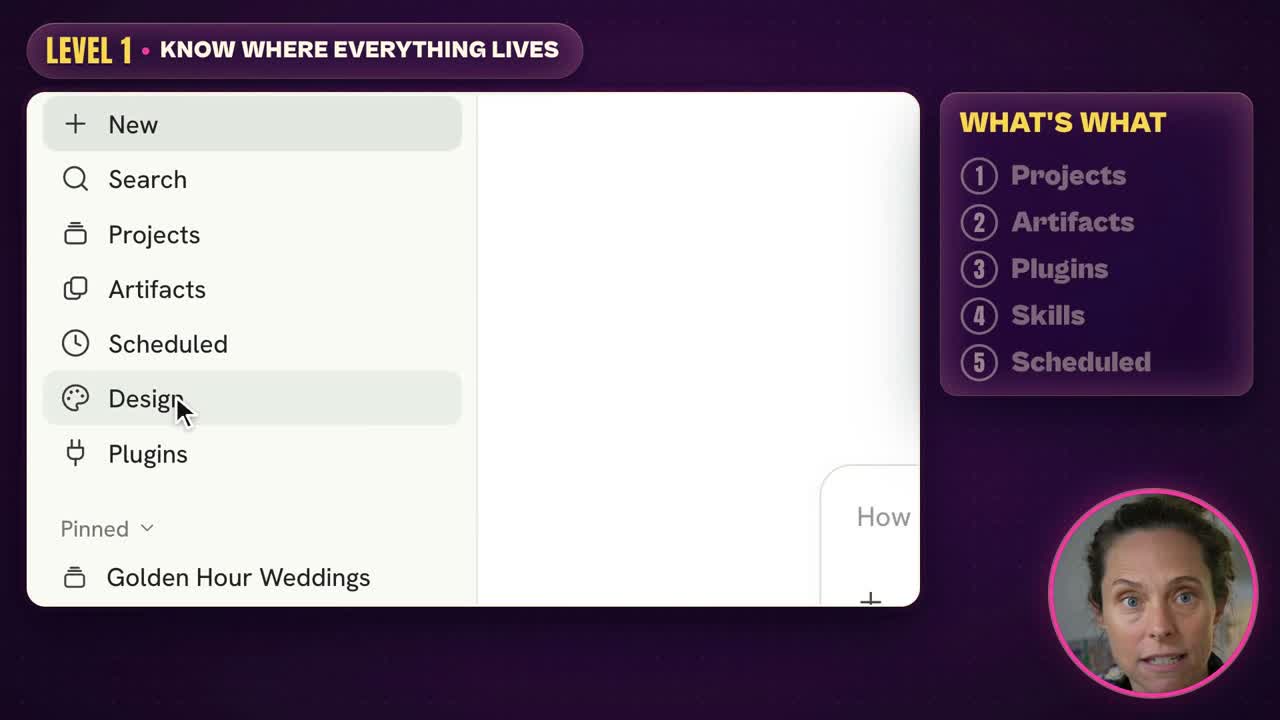
In the sidebar. When I filmed this, you'd see Projects, Artifacts, Plugins, Scheduled and Design. In plain terms:
- Projects are your filing cabinet. One per client, say.
- Artifacts are your out-tray: the things Claude makes for you.
- Plugins is where your connectors live, and skills now too.
- Skills are recipe cards: a job you teach it once.
- Scheduled tasks are jobs that run on their own, on a timetable.
Two changes caught people out this year. There used to be a separate Cowork mode, the one where Claude works through your files. It's now part of every chat: you ask, and Claude works out how. If your message box still says Chat and Cowork, the update just hasn't reached you yet, and everything here still works. I also have a Cowork tutorial from before the change if you're on the older version.
The other change is that bigger jobs run on Anthropic's computers, not yours, so you can close your laptop and they carry on. The catch is files on your own computer: the desktop app has to stay open for Claude to reach them.
Under the message box you'll also see manual and auto. On manual, Claude asks before it does anything. On auto, it just gets on with it and only stops if something looks unsafe. I said in the video that auto is now the default, so check which one you're on.
Plans, checked 24/11/2026: Pro is US$20 a month, Max is US$100 and Ultra is US$200. I'd start on Pro and move up when you hit limits. Anthropic's pricing page is the source if it's changed. I compare it with ChatGPT here.
Level 2: how do you give Claude a handbook?
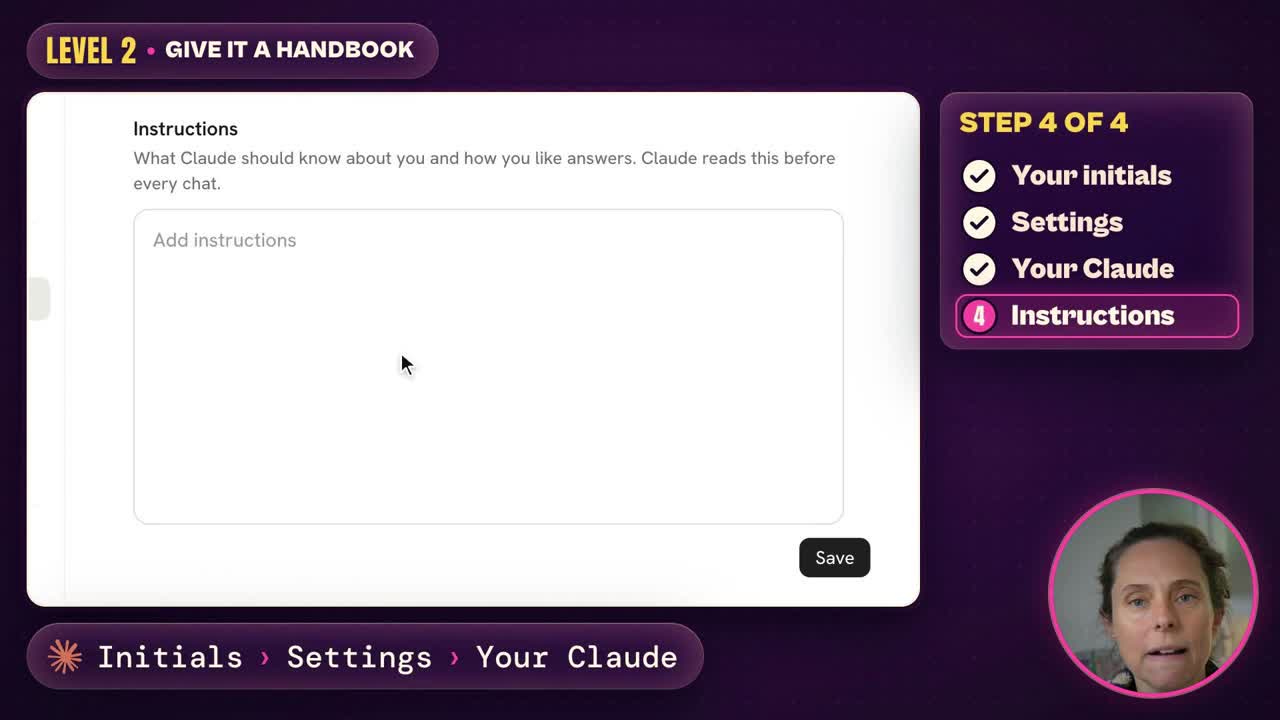
Write your custom instructions: click your initials bottom left, go to Settings, then your Claude, and you'll find a box called Instructions. Claude reads it before every chat. If you've pasted your About page into Claude more than once, this is the fix.
Don't write it by hand. Let Claude interview you:
I'm setting up my custom instructions for you. Can you ask me questions one by one about who I am, who I serve, my business, and how I like to work and how I like my answers? Keep going until you're 95% sure. Then you write my instructions.
Then add this line, because Claude can be a bit of a yes man:
Act as my sparring partner. Push back on my ideas and surface angles that I haven't considered yet.
On the same page there are two memory switches, "Generate memory from chats" and "Search and reference chat". I'd turn both on. That's how you can open a new chat and say "pull up that offer we were chatting about last week". Coming from ChatGPT? There's an import option for your memory.
Two more settings worth a minute:
- Privacy. Under Settings, then Privacy, "Help improve our models" decides whether Anthropic can train on your new chats. As I explained it in the video, on means chats can be kept for up to 5 years, and off means 30 days. If you put client details in, or you've got IP to protect, switch it off.
- Long chats cost more. Every message makes Claude take in the whole chat again, and the early context starts to fall off the end. When a chat gets long, start a new one and say "we were working on this yesterday, get yourself up to speed".
Level 3: what's a Claude HQ, and why does it fix forgetting?
This is the mistake I see the most. People make a project per client and paste their brand voice and prices into each one. But projects can't see each other. What Claude learns in one doesn't carry to the next, so every project is flying blind, and when your prices change you have ten stale copies.
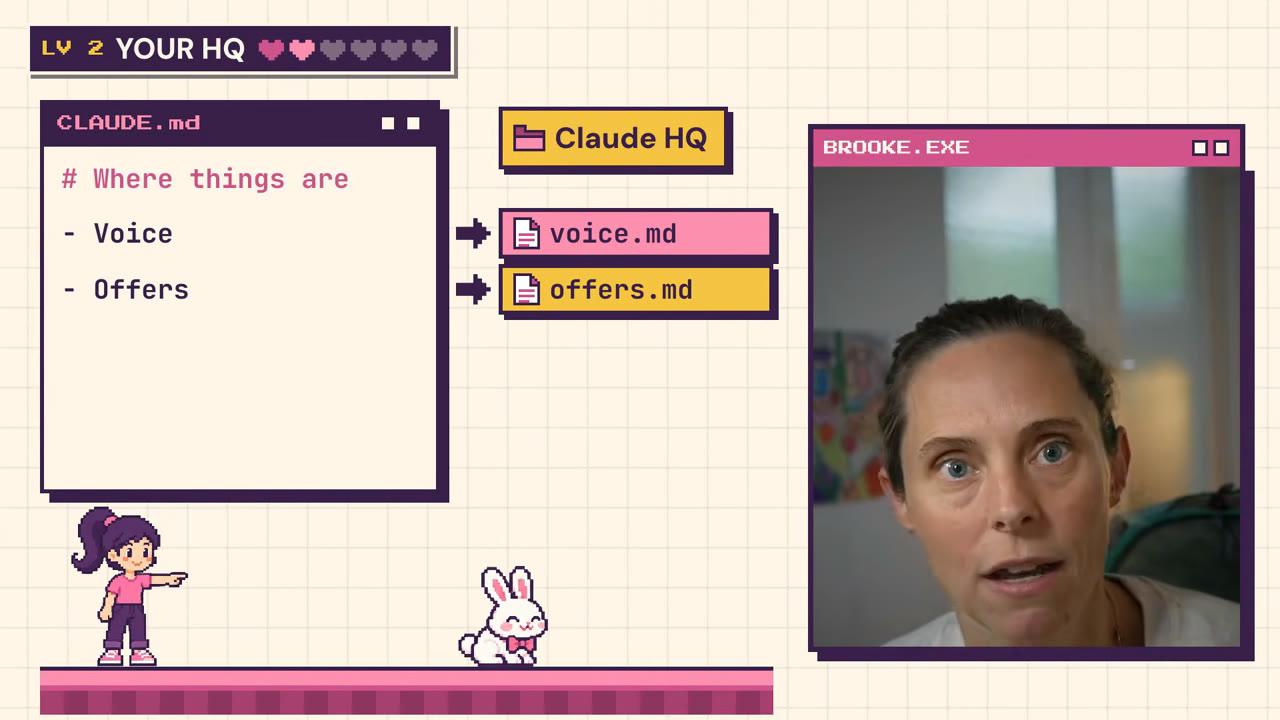
The fix is one home for your files. I call it a Claude HQ: think of the shared Drive you'd give a new staff member on day one, with a note on top saying where everything lives.
Put it in Google Drive because it's in the cloud. Claude can reach it with your laptop shut, from your phone and from scheduled tasks. Here's the setup:
- Go to Plugins, search Google Drive, and hit Connect.
- Sign in with your business Google account, not your personal one. Claude can only see the Drive you connect.
- Don't build the folders yourself. Paste this in a new chat:
Set up a Claude HQ folder in my Google Drive for my [your business]. Inside, make folders for About Me, Clients, Content, Admin and Outputs. And let's add a client folder for [client name], and also make a START HERE file that maps what lives where, so you read it first every single time and know where to go.
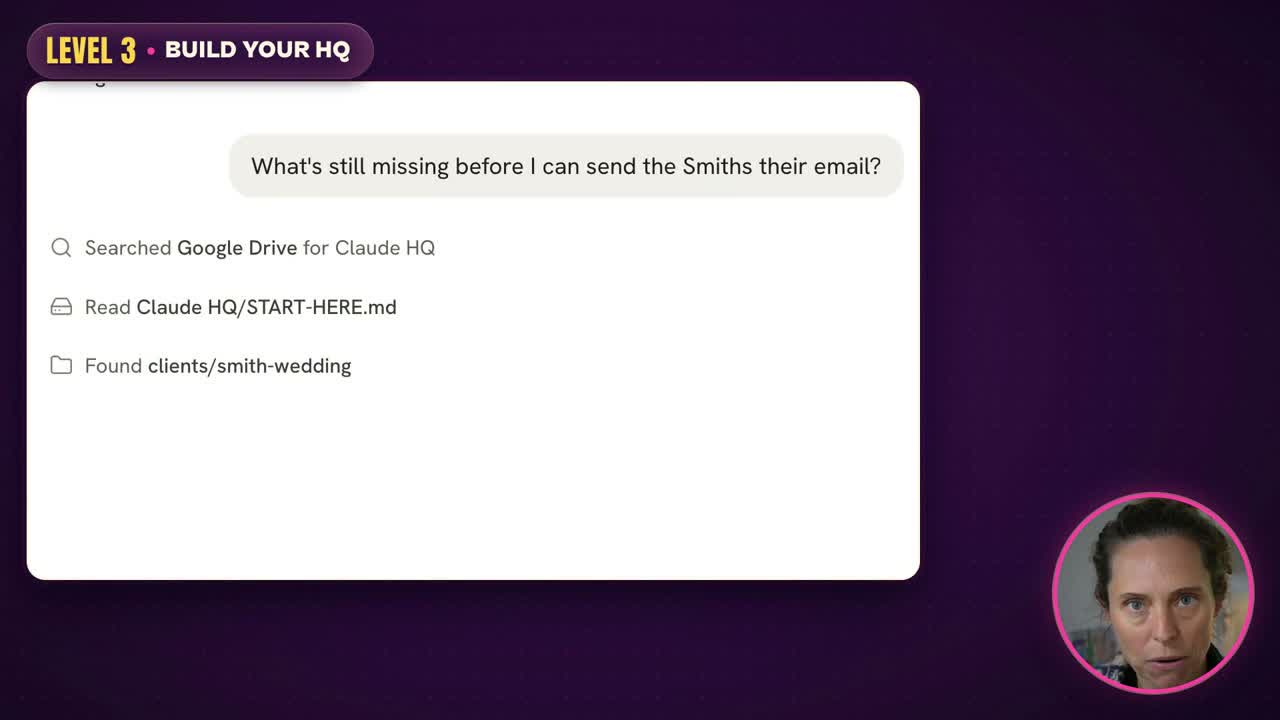
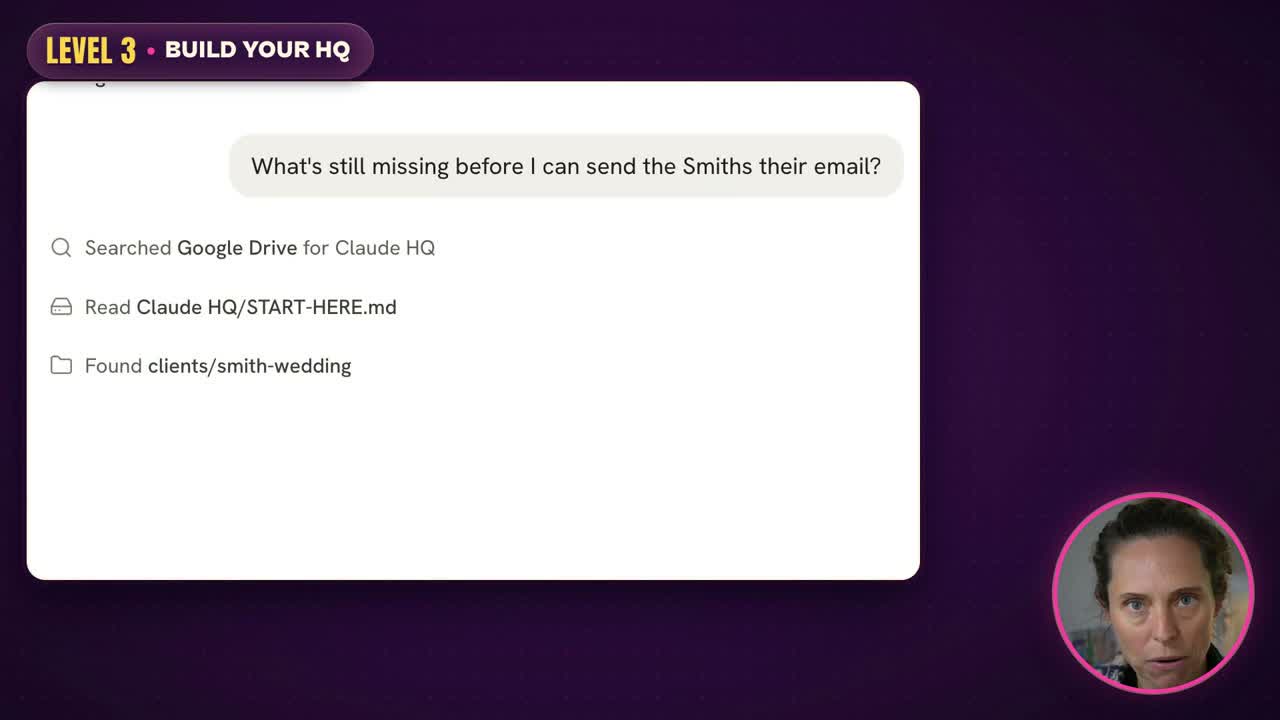
Now open a brand-new chat and ask for a thank-you email to a client. Claude reads START HERE first, writes the email, and saves it in Outputs with the date in the name. You never told it a folder.
If you live in Notion, you can say "a Claude HQ page in my Notion" instead. Pick one home, not both.
Where do projects fit now? In the video's words, projects "aren't separate brains anymore. They're rooms off your HQ." Hit New Project, then in the box asking what you're trying to achieve, write something like: everything for this client lives in Claude HQ, Clients, Smith Wedding, read START HERE first. I tried pasting a folder link there and it wouldn't take it (it said invalid URL), so the description is what points the room at your HQ.
Leave "use account memory" on so your level 2 instructions flow into the room. Only switch it off for a client whose details have to stay completely private. Then test it: ask "what's still missing before I can send the Smiths their email?" and it should go straight to the right folder.
More on how projects and skills differ: Claude Projects vs Skills.
Level 4: how do you connect Claude to Gmail, your calendar and other tools?
A connector is a plug between Claude and another app, like a USB-C cable. Start with four: email, calendar, Google Drive (done at level 3) and your note-taker.
Go to Plugins, search Gmail, open it and hit connect, then sign in and approve. Same for your calendar and note-taker. I also have Kit connected, so Claude can write email marketing into Kit as a draft, and I review it and hit send. The easiest way to learn what a connector can do is to ask:
I've just connected my Gmail and my calendar. Can you let me know in plain English what you can do with these?
Permissions matter here. Gmail used to only write drafts. Now it can send, reply and forward. When Claude wants to use a tool you'll see decline, always allow or allow once. My rule:
- Always allow for things that only read, or save into your HQ.
- Allow once for anything that goes out to another person, like sending an email.
You can change this any time. Open Gmail on the Plugins page and under tool permissions you can set send to block if you never want Claude emailing for you.
If your tool isn't on the list, ask Claude whether it has an official MCP server (that's the technical name for the plug), then add it under custom connector and paste the link. That's how I connected Blotato for my social posts. Only connect companies you trust, because connectors can change and delete things in that app.
I've got a step-by-step for the Gmail and calendar part: Claude connectors for Gmail and calendar. Anthropic's own guide is here.
Level 5: how do you teach Claude your brand voice?
With a skill. A skill is a recipe card: you teach Claude a job once in plain English and it does it the same way every time. That matters because you can ask for the same thing five times and get five slightly different answers. A skill standardises it.
Start with your voice, because a caption skill without your voice writes the same captions as everyone else. Drop in your website, five or so captions you love and three or four emails you've sent, then:
Can you read my website and these captions and emails and build me a brand voice document I can use for all of my content? Include examples of both good and bad work. Then save it into my Claude HQ in the About Me folder as brand voice.
The bad examples are the bit people skip. With both, Claude has something to check its work against. And because it lives in About Me, there's one copy that every project, skill and scheduled task reads.
My way of making a skill: get one output you love first, then say "now take this and turn it into a skill based on everything we've done here". Check Skill Creator is switched on in Plugins, and it packages the skill file for you. Skills improve with use. Tell it what it got right and wrong, like feedback to a new staff member, and ask it to update the skill. See how to build Claude skill systems for more.
Level 6: how do you make client-ready work in Claude?
My favourite is a client resource pack. I started making them after training sessions because I already had the meeting transcript and thought, this is high value for my clients and not much more work for me.
In the example project, the room already knows where the HQ is, so the prompt is short:
Read the [client] notes in my Claude HQ and make [client names] a client onboarding pack. Make it an interactive page in my brand colours with tabs for what to expect, what to wear, the timeline, and how to reach me, and use my brand voice.
Click through every tab and check dates and venue like you'd check a new staff member's work. Fix anything wrong by telling it. When you're happy, turn the result into a client onboarding skill, and next time you just ask for a pack for your new client.
Sharing catch. Change "only you" to "anyone with the link" and the client doesn't need a Claude account, but it works like a public Google Doc link, so anyone with the link can open it. Claude docs are different: the person has to be signed in to Claude. For clients, ask for a page like this one, or download a PDF.
Claude Design has moved. It's in the sidebar now, with Slides, Design and Design System (where your brand colours and fonts live). The standalone claude.ai/design page closes on 14/12/2026, so hit move to bring your design projects across.
Level 7: how do you hand Claude whole jobs?
This is the "Claude with hands" level: it reads your HQ files, makes the thing and saves it where it belongs. In the example project:
Read START HERE in my Claude HQ, then go into my client Smith Wedding and turn the consult notes into a timeline for Jess and Tom's wedding day, from getting ready through to the send-off. Can you flag anything that's missing, and can you save it for me with today's date.
Once it's going I can close my laptop. The job keeps running because it's in the cloud, and the HQ is in Google Drive, also in the cloud. On my phone, the Claude app shows the same chat, and a permission request arrives as a notification I can answer there. The timeline ends up in Outputs, and a draft email can be waiting in Gmail.
Two catches:
- If a job uses a folder on your laptop, like Downloads, the desktop app has to stay open.
- Claude in Chrome is an extension that sits beside the page and can click around and fill in forms. When I planned my US trip, I had it find options and get everything to the booking stage, and I only entered my payment details. Keep the human in the loop there.
Keep Claude on a tight leash at the start. It's a junior assistant. Leave it on manual, especially in Chrome, and move to auto once you trust it and the work isn't high-risk.
Level 8: how do you put Claude on a timetable?
With a scheduled task: a job you give Claude once, with a time on it. It's like telling an assistant, every Monday morning I want a page on my desk showing my week.
Nail it in a normal chat first, go back and forth until you like it, then turn it into a task:
Can you check my calendar for this week and my inbox for anything from my clients? I want you to give me a one-page brief of my week.
Then:
Okay, make this a scheduled task that runs every Monday at 7:00 AM. Save the brief for me, make it visual.
Add guardrails in the same breath:
Only read my email, never send, reply, delete, or move anything. Don't stop to ask me anything. If something's missing, put it at the bottom of the brief and keep going.
Scheduled tasks run on auto by default, so Claude uses your connectors without stopping to ask. That's what you want at 7am on a Monday, but it's why the guardrails matter. Claude comes back with a name, the schedule and the instructions it wrote for itself. In my example, three lines of mine became six steps. Hit Schedule.
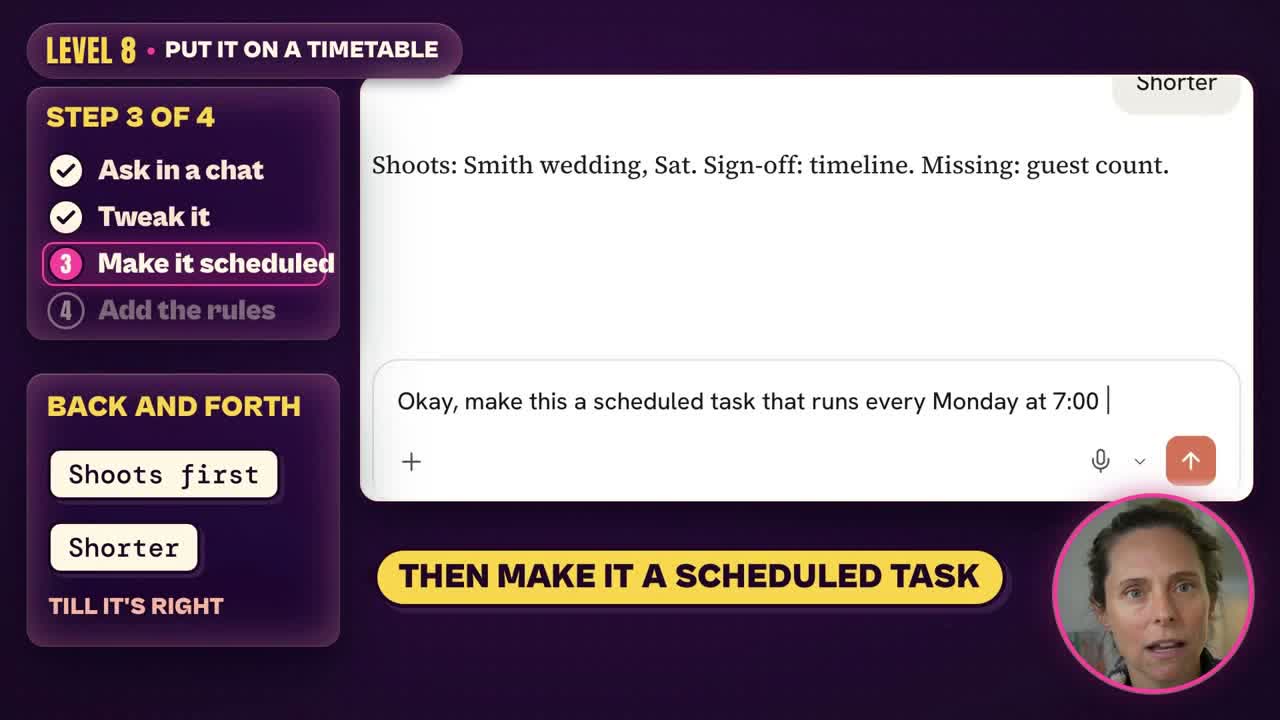
Don't wait until Monday to find out whether it works. Open the task under Scheduled and hit run now. If a task comes back empty, a connector it needs is probably set to always ask permission, so it's sitting there waiting for you. Ask Claude to work out why.
Does your laptop need to be on? Not if the task uses your HQ in Drive, because it runs on Anthropic's computers. If you pick a folder on your computer, a "require this computer" setting turns on and it only runs when your laptop is awake with the app open. In the video I said it catches up on missed runs when you next open the laptop.
Anthropic's own advice, as I passed it on in the video, is not to schedule anything that sends messages, buys things or is hard to undo. Start with briefs and summaries.
Level 9: what's the Code tab, and do you need to be technical?
No. The Code tab is files and folders on your computer. You describe what you want, and Claude writes the files: a website, a quiz, a little tool for a client. It can use the same HQ.
To share one HQ rather than two copies, install Google's free Google Drive for Desktop. That puts your Drive on your computer, so your Claude HQ shows up as a normal folder and the Code tab opens those same files. I made a whole video on the Code tab for people who've never written code, and I wrote it up in Claude Code for non-technical users and how to use Claude Code.
Level 10: what is outcome-based prompting?
Describing the result you want instead of the steps. Models are smart enough now that, as I put it, they work better with fewer constraints. The more steps you dictate, the less room it has to find a better route.
I'm trying to build a website that you can help me manage. I don't want to have to deal with things like WordPress or Squarespace. Can you go out and research our options? And then let's code this.
Notice there's no tool named. I'm asking for the outcome, and it comes back with options, then helps me build. The other half of the trick is to brain-dump the outcome and then add:
Ask me any clarifying questions one by one until you're 95% sure that you can do this job well.
Where should you start?
Don't try all ten this week. Do levels 2 and 3 first: the handbook and the HQ. Everything after that gets easier because Claude finally knows who you are and where your stuff lives. Then pick one repeat job from your week and do levels 5 to 8 on it only.
Try this in 15 minutes
Open a new chat and paste the level 3 prompt with your own business in it. Then start another new chat and ask for something small, like a reply to a client. If it opens START HERE without you pointing it anywhere, you've got an HQ.
Quick answers
Do I need a paid plan to follow this?
Most of it, in practice. I'd start on Pro (US$20 a month as of 24/11/2026). Check Anthropic's pricing page to see what's on the free plan today, because it changes.
Do I need to know how to code?
No. Even the Code tab is you describing what you want in plain English. I'm a non-developer and I've never written code.
Is it safe to connect Gmail?
It can be, if you set the permissions deliberately. Read-only actions on always allow, anything that goes to another person on allow once, and send on block if you never want Claude emailing for you. Only connect companies you trust.
Where do I find the prompts?
They're all in the section for each level above, and the video description also has them for copying.
Want help setting up your own HQ?
Reading it is one thing and doing it with your own messy Drive is another. Wright Mode is where I walk you through this step by step: monthly live builds, fortnightly co-working and Q&A, and a community of women doing it alongside you. Bring your level 3 HQ and we'll get it working.