Connect the intended Google account, check the enabled actions, then test one inbox or calendar question you can verify. Native Google Workspace connectors can read and write; a read-only first task is a deliberate choice, not a guarantee that the connector has no write tools.
Most people use Claude like a slightly smarter Google. Ask a question, get an answer, close the tab.
Which is fine. But it means Claude has no idea what's actually going on in your business. Every time you want it to help with your inbox or your week, you're copying things in by hand.
Claude connectors fix that. They plug Claude straight into the tools you already live in — Gmail, Google Calendar, Drive, Notion — so it can read what's there and act on it. No copy-paste. No "let me give you some context first."
This is one of three features I walk through in the full video, but connectors are the one that turns Claude from a clever chatbot into something that actually sees your business. If you're newer to Claude, it's worth pairing this with how to use Claude projects and skills — projects give Claude context about you, connectors give it access to your tools.
What are Claude connectors?
A connector is a permission you grant that lets Claude read (and sometimes write to) one of your accounts. Connect Gmail and you can ask "which emails from the past 24 hours haven't I replied to?" and Claude will actually go and look. Connect Google Calendar and "what's free in my schedule this week?" gets you a real answer, mapped to your timezone.
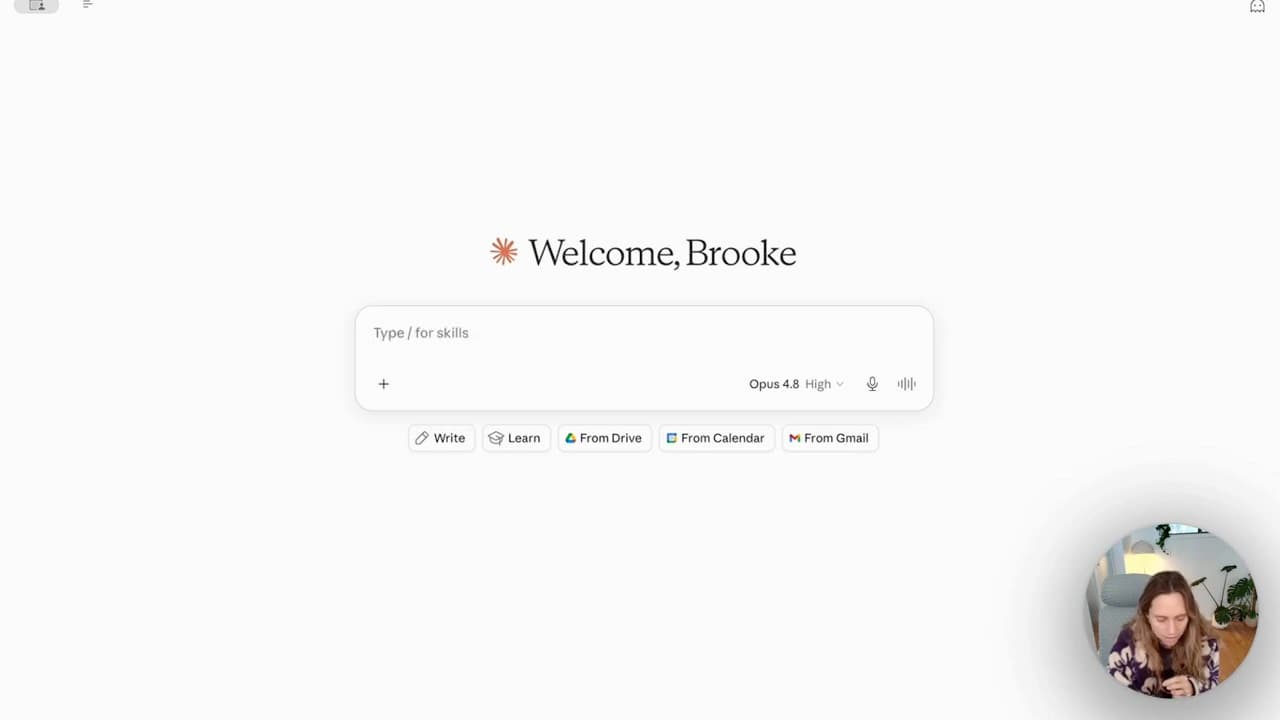
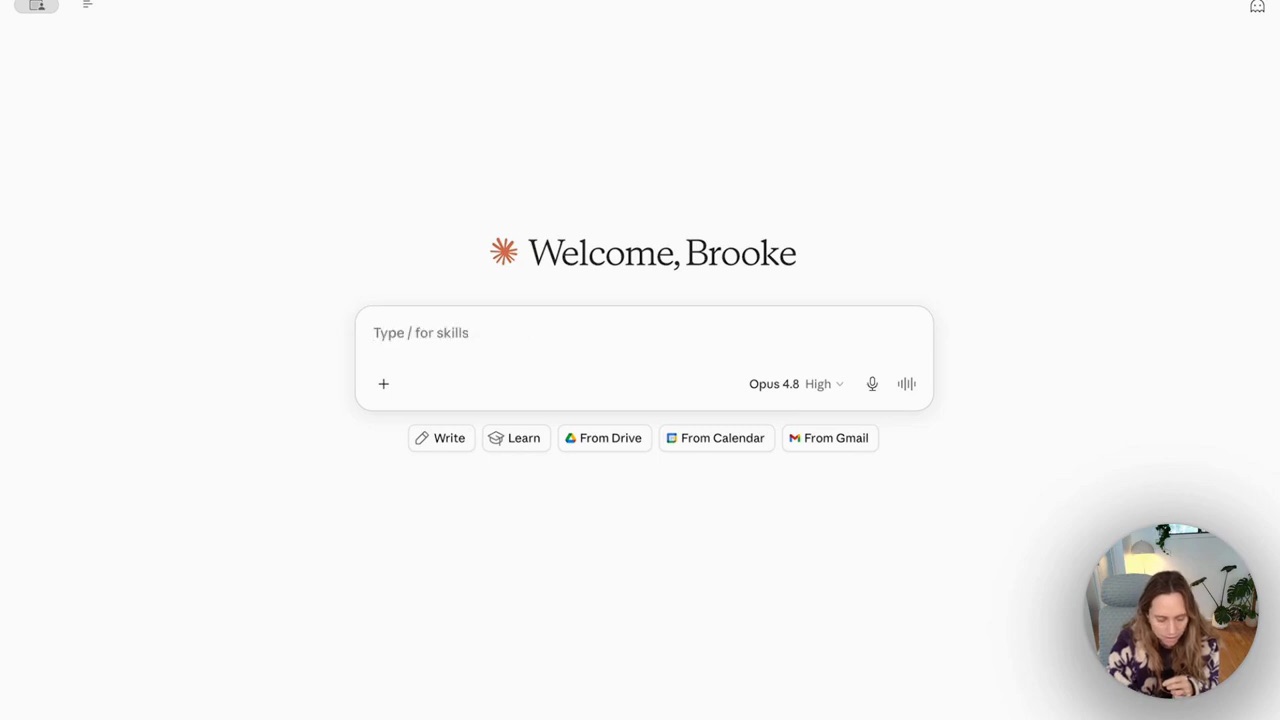
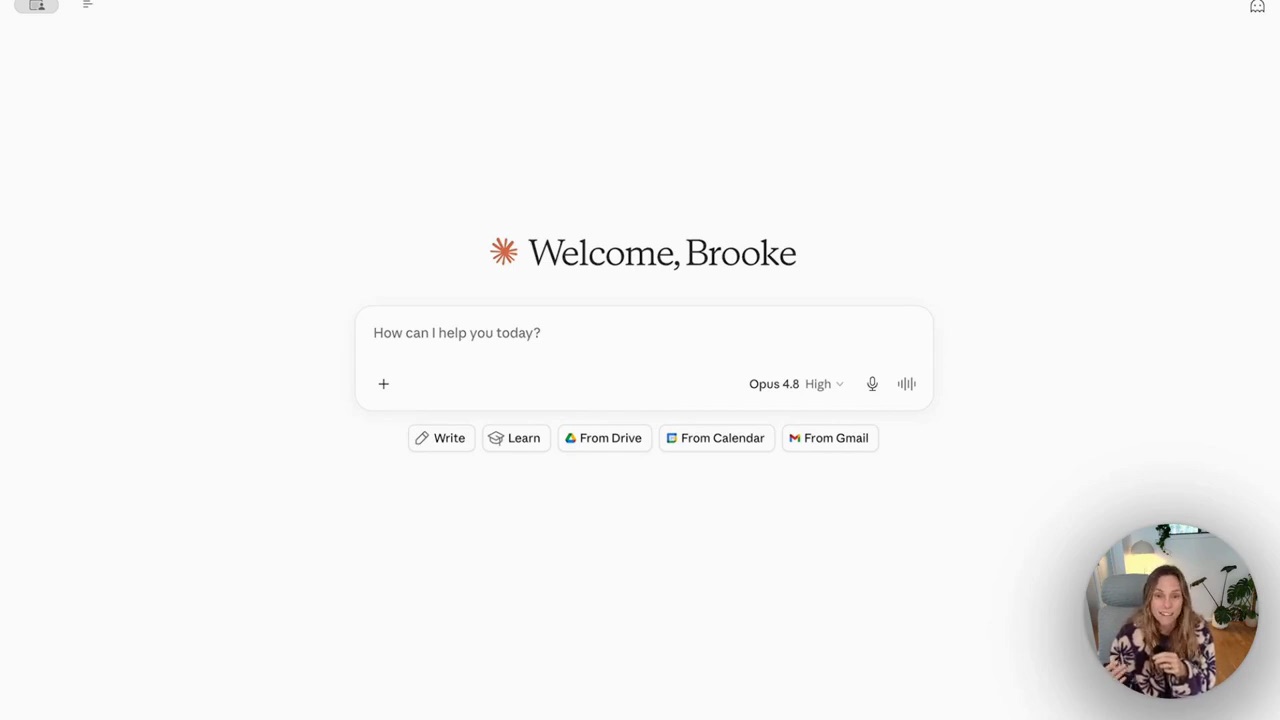
In the recorded interface, the connector buttons appeared on the Claude home screen — From Drive, From Calendar, From Gmail — so once they're set up you pull live data in with one click.
The difference is hard to overstate. Before connectors, "what's urgent in my inbox?" got you a shrug — Claude had no inbox to look at. After connectors, it reads the actual emails and tells you what needs a reply.
How to set up a Claude connector (and the permission bit that matters)
Setting one up takes about a minute. You go to connectors, pick the tool, and authorise it the same way you'd connect any app to your Google account.
The part worth slowing down on is permissions. The current Google Workspace connector guide documents Gmail sending and calendar changes. Gmail sends ask for approval by default; organisation settings can affect approval choices. Review the actual enabled tools, rather than assuming every connector uses the same two-button setup.
Start read-only. You can always grant more later once you trust what it's doing.
For most people, read-only does almost everything you actually want — summarising your inbox, flagging what needs a reply, pulling out action items. You only need write access if you want Claude drafting and sending replies for you, and even then you'll probably want to review before it sends.
What connectors actually do day-to-day
Here's where it stops being theoretical. With Gmail and Calendar connected, Claude can:
- Scan the last 24 hours of email and list what you haven't replied to
- Pull out genuine action items hiding in long threads
- Read your calendar and find your actual open slots this week
- Cross-reference the two — "I've got a gap Thursday morning, and there's an email asking to meet"
This is the same Projects context paying off, by the way. Because Claude already knows your business from your project instructions, it knows what "urgent" means for you — not a generic definition.
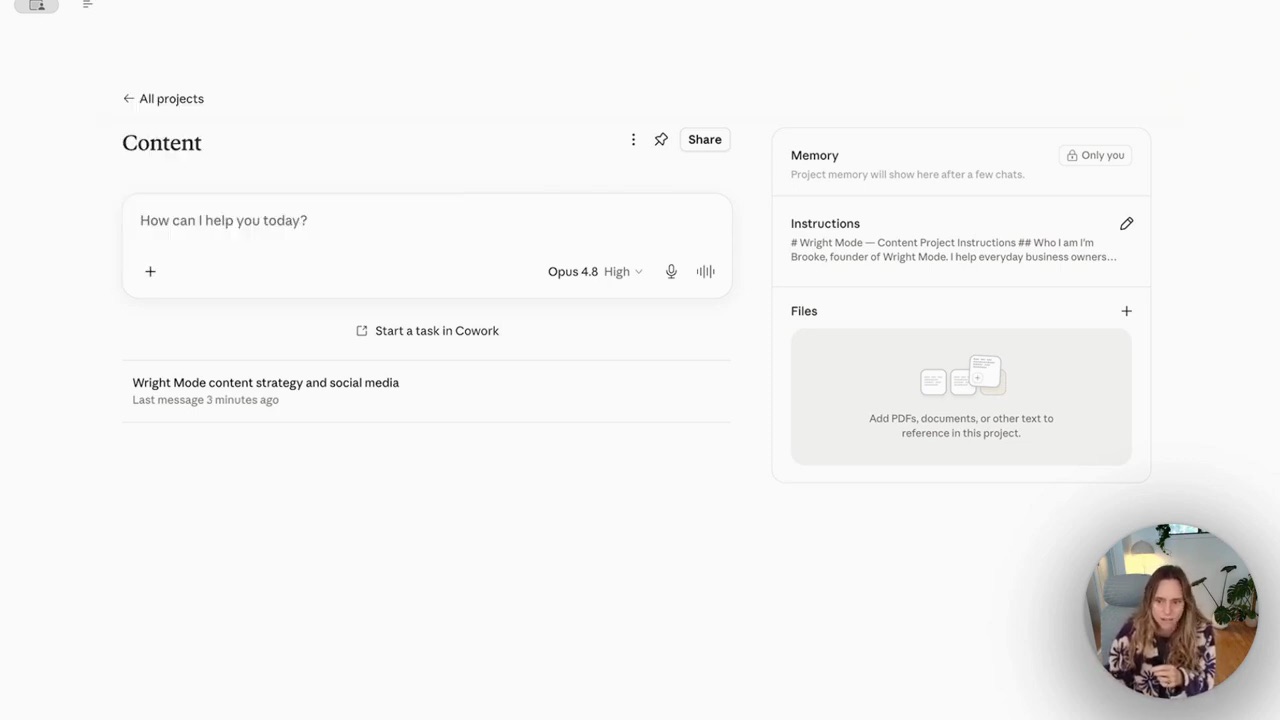
If you want the deeper version of working inside Claude like this — across chat, projects and the desktop app — the Claude Cowork tutorial walks through the three levels of practical use, from beginner to expert.
Are Claude connectors safe?
This is the question everyone asks, and it's the right one — you're handing an AI access to your inbox.
Read access and write authority are different questions. A read-only tool cannot perform a write, but it still brings the permitted data into AI processing. Connect the right account, check data settings and keep write actions blocked or approval-bound until you have tested the workflow.
My rule: read-only for anything you're nervous about, write access only for the workflows you've watched run a few times and trust.
FAQ
What are Claude connectors?
Claude connectors are integrations that let Claude read and act on your other accounts — Gmail, Google Calendar, Google Drive and Notion among them. Once connected, you can ask Claude about your real inbox or calendar instead of copying information in manually.
How do I connect Claude to Gmail?
Open Customise → Connectors, find Gmail and authenticate the intended Google account. Review the permissions and tool controls. Ask for a summary of a known email first, check it, then decide which additional actions the workflow needs.
Are Claude connectors safe to use with my email?
Use the minimum access the task needs and review the provider’s data settings. Reading email still involves processing its contents. Keep sends and changes approval-bound; read-only analytics does not need those actions.
What's the difference between Claude projects and connectors?
Projects give Claude context about your business — your brand, your offers, the way you work — so it remembers you between chats. Connectors give Claude live access to your tools, so it can read your actual inbox and calendar. They work best together: projects tell Claude who you are, connectors let it see what's happening.
Connectors are the feature that takes Claude from "useful" to "actually runs the admin." Set them up read-only first, watch what it can do with just your inbox and calendar, and grant more access as you build trust.
If you want help wiring AI into your business properly — not just connectors, but the whole system — that's exactly what we do inside the Wright Mode membership, a working room of women founders building this stuff together.