The way to get real work out of Grok Bot is to build it up in order: one Chief of Staff bot that interviews you, two connected apps with sending switched off, "ask first" rules, then skills, routines and a small team of specialist bots that report to a manager. That's the order I'd do it in now, after five weeks of Grok Bot running parts of my business.
Here's what that looks like day to day. My Chief of Staff gives me a brief every Monday and manages the other bots underneath it. Jerry, my email manager, checks every brand deal before I see it. My membership ops lead only messages me when something needs a yes or a no.
After my first Grok Bot setup guide, the question I got asked most was "are you still using it?" Yes! And a lot has changed since September, including the price. So this is everything I've learnt in seven levels, plus one hack at the end: running Claude Code or Codex on your bot's own computer so you can use them from your phone. You don't need to code for any of it.
The screen recordings in the video come from my own Grok Bot, filmed on 17/09/2026. I checked the prices and features below against xAI's and Cursor's official pages on 23/10/2026.
What is Grok Bot?
Grok Bot is xAI's personal AI assistant app. Its bots are proactive, and they work on their own computer in the cloud, so they keep going when your laptop is closed. You set it up in the desktop app, then add the phone app, and the two stay in sync.
One thing that makes the rest of this easier to follow: Grok Bot runs on Cursor-hosted cloud computers (xAI's security docs). That's why Cursor staff answer Grok Bot questions on the Cursor forum, and why your Cursor privacy settings matter.
Level 1: Download it and make a Chief of Staff first
Get the desktop app first, then the phone app. You'll need a paid plan. For new subscribers since 12/10/2026, that means Premium on The X Subscription (US$30 a month) or higher. If you already pay for SuperGrok or Cursor, you can use that instead. The full cost breakdown is further down.
Most people make one bot and ask it everything. Make a team instead, with one bot per job. You wouldn't hire one person to run your whole business, so don't ask one bot to. One bot for bookkeeping, one for Instagram, one that handles your personal life like a PA. This is where I think Grok Bot beats Dots and the other personal agents: a team of bots is built in.
Start with a Chief of Staff. It's the bot that knows your business. Later on it hands jobs to the other bots and only flags the things that actually need you.
Here's what I'd type to set it up:
You're my Chief of Staff. I run my business. Here's who my customers are. Here's what I sell. Here's how I like to work. Here's things that I get stuck on. Ask me 5 questions so you understand my business context properly and so you can actually be an effective Chief of Staff for me.
Fill in each "here's" with your real answer. The last line matters most, because it makes the bot interview you and pull out everything it needs to be useful.
Level 2: Connect two apps, and switch sending off
Connectors now live under Connect Apps. (It used to be called Marketplace, and xAI renamed it on 02/10/2026.) Start with two apps: your email and your calendar. Click connect, log in, done. Stay there for your first week.
Got more than one Gmail? Add them all. My personal Gmail is where the school notices and the kids' after-school activities land, so connecting it means a bot can help with the household stuff too.
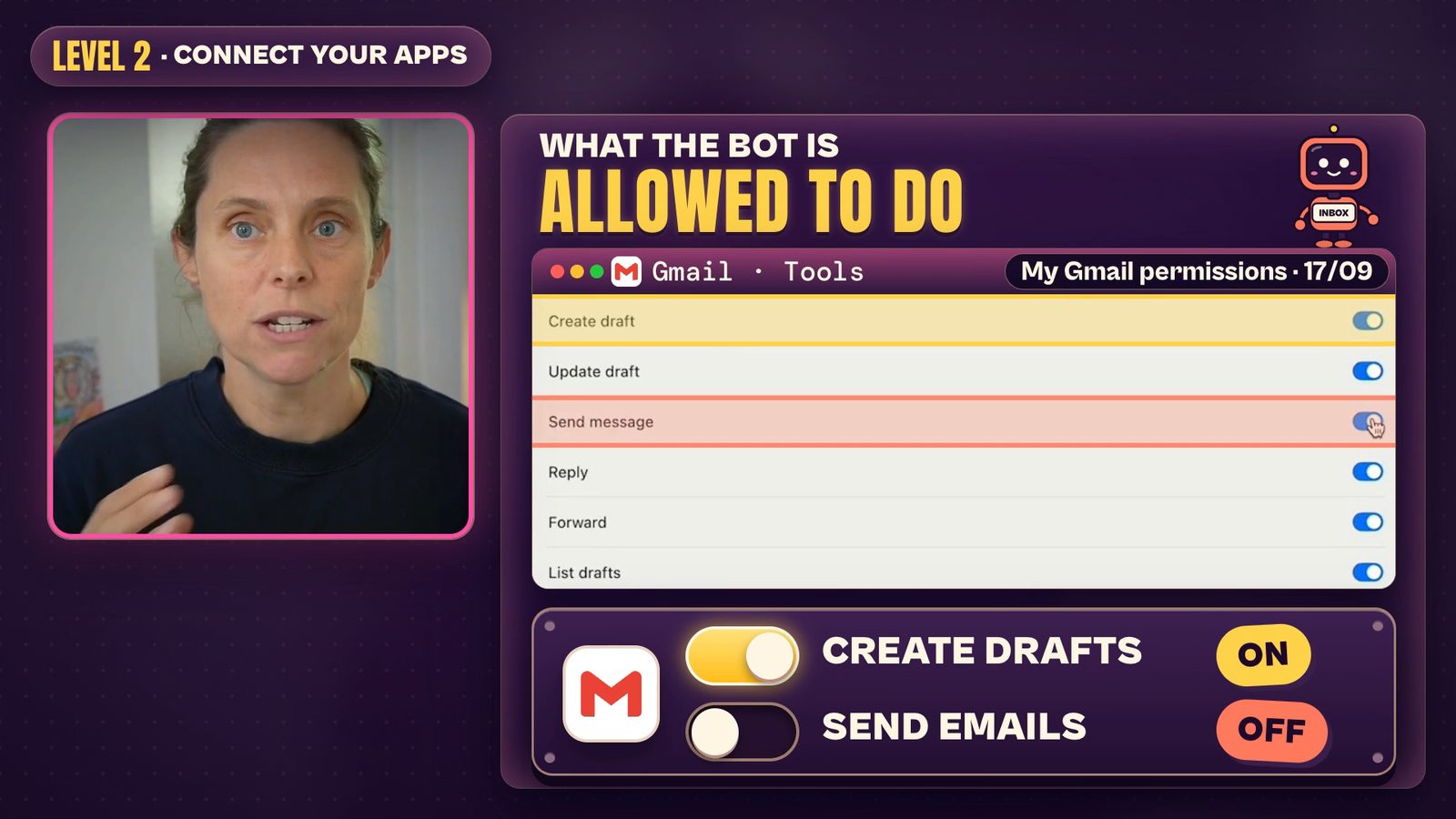
Every app you connect comes with a list of what the bot is allowed to do with it. For Gmail, turn creating drafts on and sending off. Grok Bot is built to be proactive, so if sending is switched on and you haven't told it not to, it WILL send that email. Loosen it once you trust the drafts. Same as hiring someone: a new employee earns the bigger responsibilities.
Two more things before you connect anything else.
- Never paste a password into the chat. When the bot needs you to log in somewhere, it asks you to take over its screen or sends you a secure form. Your passwords and card details go there.
- All your bots share one computer. If one bot is logged into your email, every other bot can reach it too. Giving them different names and roles doesn't keep that access apart. xAI's docs say the bots' screens "are separate work surfaces, not separate security boundaries" (computer and apps docs).
My rule: don't connect anything you wouldn't hand to a brand-new contractor in their first week. I don't connect my bank. Work out where your own line sits before you start clicking connect.
Level 3: Set "ask first" rules before it works on its own
Go to Settings → General → Auto-review and write your rules in plain English. An "ask first" rule always stops the bot and waits for you (xAI's approvals docs). These bots are designed to ask less than Claude Code or Codex do, so if you want that check-with-me style while you're starting out, you have to set it.
Start with these four:
- Ask me before you send anything.
- Ask me before you post anything.
- Ask me before you delete anything.
- Ask me before you buy anything.
When a bot asks, you get Allow once, Always allow or Deny. For your first few weeks, stick with asking every time. Once you're happy with the output on a particular task, switch that one to Always allow.
One catch that will save you a confused morning. If a routine or another bot asks for approval and you don't answer within about 10 minutes, the request expires and the job doesn't run. Something you expected overnight didn't happen? Check your approvals first.
Level 4: Turn the jobs you repeat into skills
A skill is a recipe card for one job: the steps, the order, and which tools the bot is allowed to use. How you reply to brand deals. How you onboard a new client. Even how you name your files.
There are two easy ways to make one.
- Say "Save this as a skill." When a bot finishes a job and you like how it did it, that's all you need to type.
- Use Teach a Task. This is my favourite. Open the bot's computer, hit Teach a Task and do the job yourself while it records, for up to 10 minutes. When you stop, it writes the skill from what it watched. Show it how you filter your emails and it does it your way from then on.
Recording beats describing, because when we explain our own workflows we skip steps without noticing. The recording catches every one. It records what happens on the bot's screen, not your microphone (xAI's skills docs).
Skills are shared across all your bots, so you teach it once and any bot can use it.
Keep skills small. One giant "write my newsletter" skill (or worse, "do all my marketing") is hard to fix when something goes wrong. Split the newsletter into research, drafting and formatting, then add a reviewer skill. When something's off, you only fix that one piece.
Level 5: Put the jobs on routines
A routine is a job on a schedule. This is where Grok Bot starts working without you, and it's where it gets really powerful. My social media manager hunts for short-form content ideas every Monday. It researches new AI news and what's trending on X and Reddit, then drops the ideas into Slack for me to review and film.
Don't build routines in the settings yourself. Tell your Chief of Staff what you want handled and let it set them up. It can even create new bots, and it came up with better routines than I would have.
This is roughly what I told mine:
Check my calendar and email daily. Flag anything that actually needs me. Read my sent emails and create drafts that sound like me and create a skill from that. Don't send anything. Label brand deals and hand them to Jerry.
Jerry is my email manager bot. He researches whether a brand is legit and a fit for my audience, and I only see the brand deals that pass. (The app spells him Gerry, which is the name you'll see in the screenshot below.)
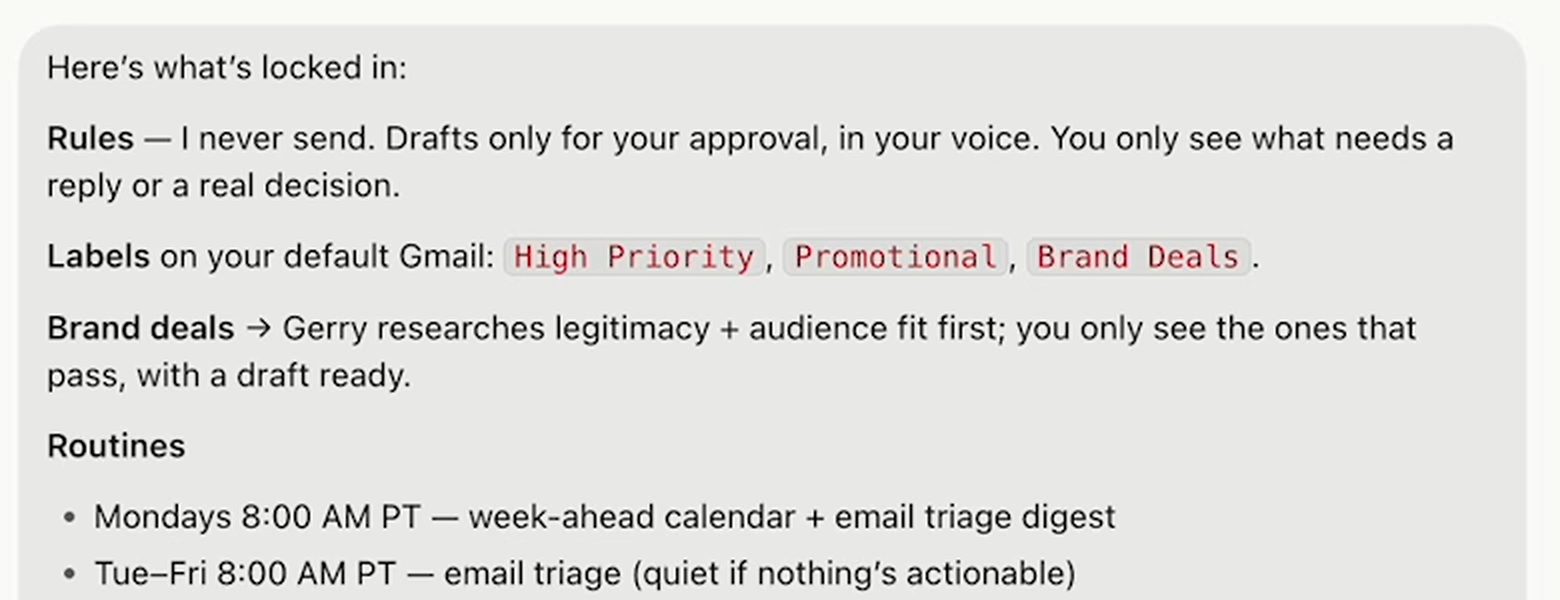
That screenshot is from when I first set it up on 17/09/2026. I've since moved email triage to twice a day on weekdays.
Routines don't have to run on a timer, either. They can start when something happens, like a new message landing in Slack.
Give a bot its own email address. This one's new. Ask a bot to claim an email address and it gets one (added 11/10/2026). You can then use a tagged version of that address, like the bot's name plus +receipts, and make a routine that only runs on mail sent to that tag (added 14/10/2026). Forward every new receipt there, have the routine log each one in a spreadsheet, and your bot has started on your bookkeeping. Anything a bot sends from its own address waits for your approval first.
Level 6: Build a bot team without burning your usage
Once your Chief of Staff is working, add specialists. One job each.
Here's what I changed since my first video. I had my bots chatting with each other in a group chat, and every one of those messages was eating my usage. A Cursor staff member put it plainly on the Cursor forum: "Asking them in chat to “stay quiet” is only a hint they can ignore" (forum thread, 02/09/2026). Further down that thread, one person on the Cursor forum said five of their agents had been talking to each other for seven hours straight. That burns through your usage fast.
That's why middle managers matter. My Skool Concierge and my New Member Onboarding bot report to my Membership Ops Lead. Within the permissions I've given them, they get on with the work and flag the ops lead when they're unsure or it's a task they haven't done before. I only hear from the ops lead, and only when something needs a yes or a no.
How group chats work:
- A group chat holds two to six bots.
- Use @ to give one bot the job. Don't @ everyone, or they'll all jump in and try to do it.
- Approval requests and login requests don't show up in a group chat. Go into that bot's own chat to find them.
- You can star one bot as your main bot. It keeps an eye on what the other bots are doing and offers to take jobs off your plate.
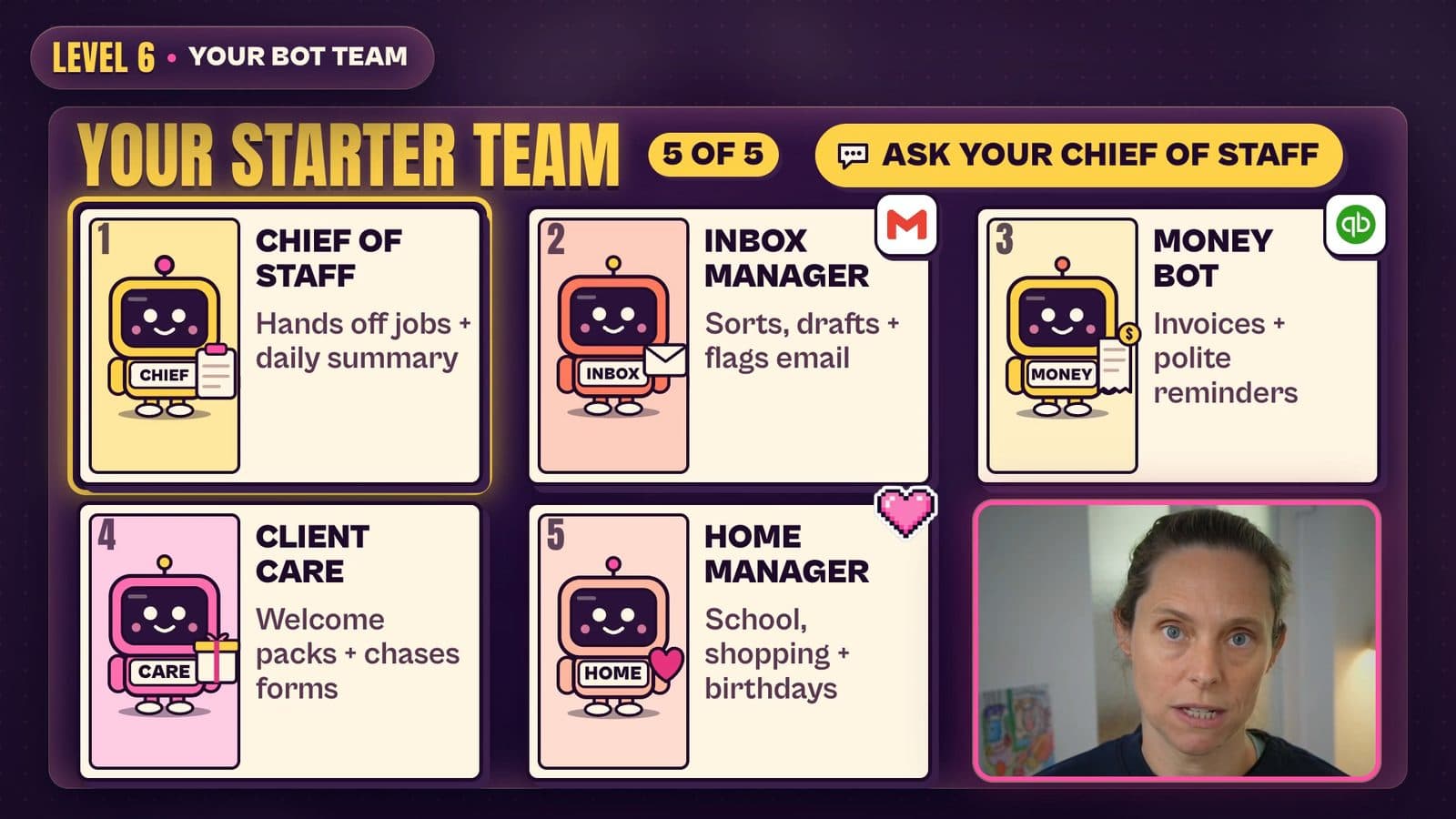
The bot team I'd start with for a service business
Everyone on YouTube shows bots for content. If you don't run a YouTube channel, that's not much use to you. For a service business, like a bookkeeper, a coach or a salon, I'd start with these five.
- Chief of Staff. Knows your business inside out, hands jobs to your other bots and gives you a daily summary.
- Inbox Manager. Sorts your email, drafts replies, archives and labels, and flags and prioritises what needs your attention.
- Money bot. Checks which invoices are outstanding and which have been paid, and drafts polite reminders for the overdue ones. QuickBooks Online connects to Grok Bot now (since 11/10/2026).
- Client Care bot. Sends a welcome pack every time you sign a new client or someone books, and chases any forms they need to fill out before their appointment.
- Home Manager. School notices, shopping lists, online grocery orders, birthdays and gift buying. My favourite, honestly. Keep it out of the business group chat and let it carry some of the mental load.
Every bot's description needs three things: what it owns, what it's never allowed to do, and who it reports to. You don't have to write these yourself. Have the conversation with your Chief of Staff and it will create the bots for you.
Level 7: Bring in your real team, and make things
In my first video, one of my biggest cons was that you couldn't work alongside actual humans. That's changed. Team Bots arrived on 26/09/2026. You publish one bot to your team, each person gets their own private chat with it, and it works in Slack too (Team Bots docs). So your VA can ask the Client Care bot where a client's forms are up to, and they can't read your chats with it.
Bots can make things now as well.
- Slide decks in PowerPoint or Google Slides (since 07/10/2026).
- Pages (since 22/10/2026). These are reports and dashboards the bot keeps up to date. Connect your tools and you could have a page that refreshes every Monday with your clients, outstanding invoices, new sign-ups and missing forms.
If you build a bot you love, you can share it as a template. That copies the setup, not your logins or your chat history. Still check you haven't left passwords or private details in its instructions before you share it.
The hack: run Claude Code or Codex on your bot's computer
Your bot has its own computer, and that computer has a terminal (the black window where you type commands). Log into Claude Code or Codex in that terminal and your Grok Bot can use it for you. It runs on the bot's computer with your own Claude or ChatGPT plan, so Claude Code is always on and you can use it from your phone.
It also fixes one of my biggest annoyances with Grok Bot, which is that you can't choose the model. Inside Claude Code, you can.
You don't type any commands yourself. Tell your bot:
Open the terminal on your computer and install Claude Code or Codex. Then start with the login. And stop and tell me when you actually need me to log in.
It installs everything. When the sign-in page pops up, take over the screen, sign in to your Claude account and click Authorise. Don't type your password into the chat. Codex works the same way (the command is codex login). If the sign-in page won't open on the bot's computer, choose Sign in with Device Code instead, after switching on device code login in your ChatGPT security settings (OpenAI's Codex sign-in docs).
Then give it access to the files it needs. This is why setting up your business HQ on GitHub matters: the bot can reach the same files and skills your Claude Code uses on your laptop, so you're both working from the same context. Then you can be out, message Grok Bot from your phone with "get Claude Code to draft this newsletter" or "get Claude Code to build this landing page", and it's ready when you get home.
Before you set it up:
- Claude Code needs a paid Claude plan (Pro, Max, Team, Enterprise or Console). The free plan doesn't include it (Claude Code setup docs).
- It uses two lots of usage. Claude Code's work comes out of your Claude plan, and your bot still uses its own Grok Bot usage to drive it.
- Every bot can reach it. All your bots share the computer, so all of them can use your Claude Code. Keep your "ask first" rules on and have the bot check with you before it does anything in Claude Code, especially at the start.
- It can go missing. xAI's docs say to treat manually installed packages on the bot's computer as replaceable. If Claude Code disappears after an update, ask your bot to install it again.
If you'd rather keep Claude Code on your own laptop and steer it from your phone, that's Claude Code Remote Control. The difference is where the work happens: Remote Control keeps the session on your laptop, while this hack puts it on the bot's computer in the cloud.
What does Grok Bot actually cost?
The top comments under a lot of Grok Bot videos are people hitting their limits on day one, so here's how it works now.
Since 12/10/2026, Grok Bot comes with The X Subscription, and Premium at US$30 a month is the cheapest plan that includes it.
| Plan | Monthly price | Includes Grok Bot? | Weekly usage |
|---|---|---|---|
| Plus | US$8 | No | The baseline |
| Premium | US$30 | Yes | 4x Plus |
| Super | US$100 | Yes | 15x Plus |
| Ultra | US$200 | Yes | 50x Plus |
These are xAI's US list prices from its pricing page, checked on 23/10/2026, and they don't include sales tax. I couldn't find an Australian price on xAI's site, so check what the app shows you.
- Already paying for SuperGrok or a paid Cursor plan? You can keep using that for Grok Bot instead (Cursor's Grok Bot plans page).
- Moving to The X Subscription is permanent. Switching is optional, but once it's done, xAI says it "can't be undone" (X Subscription docs).
Your plan gives you a weekly pool of usage. On The X Subscription, that pool covers Grok Bot AND your normal Grok chats, so chatting with Grok uses it too. It resets every week, and if you run out you can buy top-ups.
Here's what eats your usage:
- Bots messaging each other.
- Bots clicking around websites in their own browser.
- One really long chat that never ends.
And here's how to make it last:
- Connect the app instead of letting the bot open its computer and click around. If there's a connected app, choose that path every time. It's heaps more efficient.
- In group chats, give the job to one bot, not the whole room.
- Run routines as often as you need, not as often as you can. Does it need to run daily, or would weekly or monthly do? My email triage doesn't need to run every five minutes. Twice a day is enough for my inbox.
What still annoys me about Grok Bot
- I can't see its memory. Your bot remembers things from your chats, but there's no documented way to see what it saved. My workaround: have every bot log its work in a Google Sheet or Notion, so you've got your own record of what it actually did.
- You can't pick the AI model. Grok Bot chooses one for each task (Cursor's Grok Bot FAQ). Most days I don't notice. Some days I really wish I could, and the Claude Code hack is my way around it.
- The sidebar gets messy fast. Hide the bots you don't chat with, like the ones reporting up to a middle manager. Hiding a bot doesn't pause it or its routines (xAI's bots docs), and deleting a bot may not clear what it left on the shared computer anyway.
Does Grok Bot work in Australia?
Yes, I use it from Australia. Two things to know as an Aussie, on top of the US dollar pricing:
- Tagging @bot on X doesn't work for Australian accounts yet (xAI's tag on X docs). Super annoying, and hopefully that changes soon.
- Training follows your Cursor privacy settings. xAI's docs say whether your data is used for training follows your Cursor account and privacy settings, so check them before you connect anything important.
Who is Grok Bot for?
If you're non-technical and you want an assistant on your phone that keeps working while you travel or your laptop's off, Grok Bot is probably a good option. It's the easiest, slickest one I've used. I've tried Dots too, and right now Grok Bot is ahead on how it looks and how it feels to use.
It will struggle if you've never written down a single job you do. AI can only follow a process you can explain to it, so start paying attention to how you actually do your work.
And if you already use Claude Code or Codex, keep doing your desk work there. That's still where I spend most of my time.
Where Grok Bot really shines for me is the small stuff. The other day I needed to return a few things that didn't fit, and I only remembered while I was out on a walk. So I opened Grok Bot. It went into my email to find the orders and filled out all the return forms, and all I had left was printing the labels.
Still deciding between agents? Read my Dots vs Grok Bot vs Meta Muse vs Hermes comparison next.
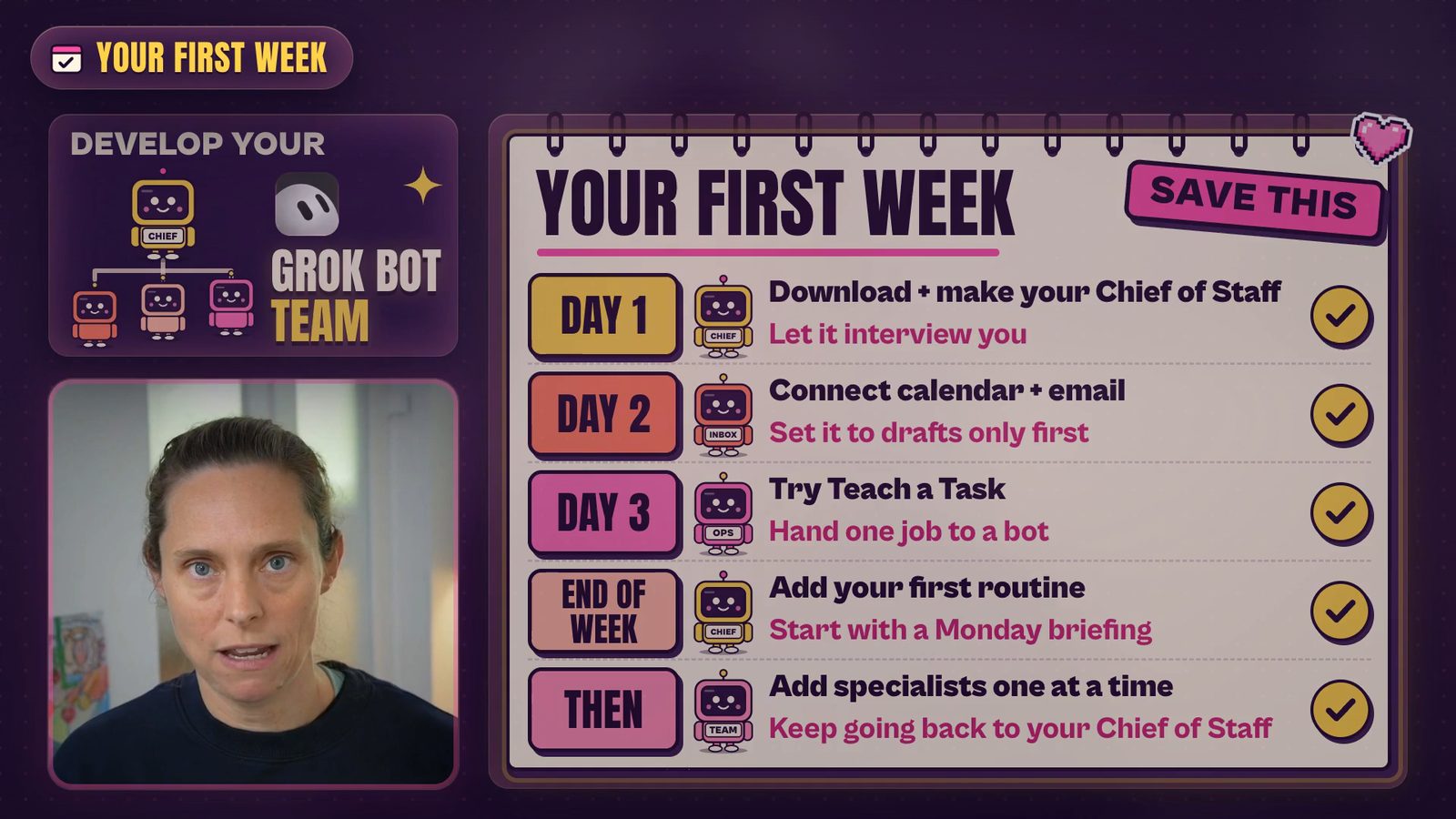
Your first week with Grok Bot
- Day 1: Download it, create your Chief of Staff and let it interview you.
- Day 2: Connect your calendar and your email. Set it to drafts only.
- Day 3: Try Teach a Task. Teach it one job you do and hand that job to a bot.
- By the end of the week: Add your first routine. A Monday briefing is a perfect place to start.
- Then: Add specialists one at a time, and keep going back to your Chief of Staff so it can keep interviewing you about your work.
FAQ
Should I switch from Claude to Grok Bot?
No. They're different products. I still do most of my desk work in Claude Code and Codex, and I use Grok Bot for jobs I want handled from my phone or while my laptop's shut. With the hack above, Grok Bot can even drive Claude Code for you.
Why didn't my Grok Bot routine run?
Check your approvals first. If a routine stops to ask for approval and nobody answers within about 10 minutes, the request expires and that action doesn't run (xAI's approvals docs). The other thing to check is your weekly usage. When the pool runs out, the app shows a usage-limit notice until it resets or you buy a top-up.