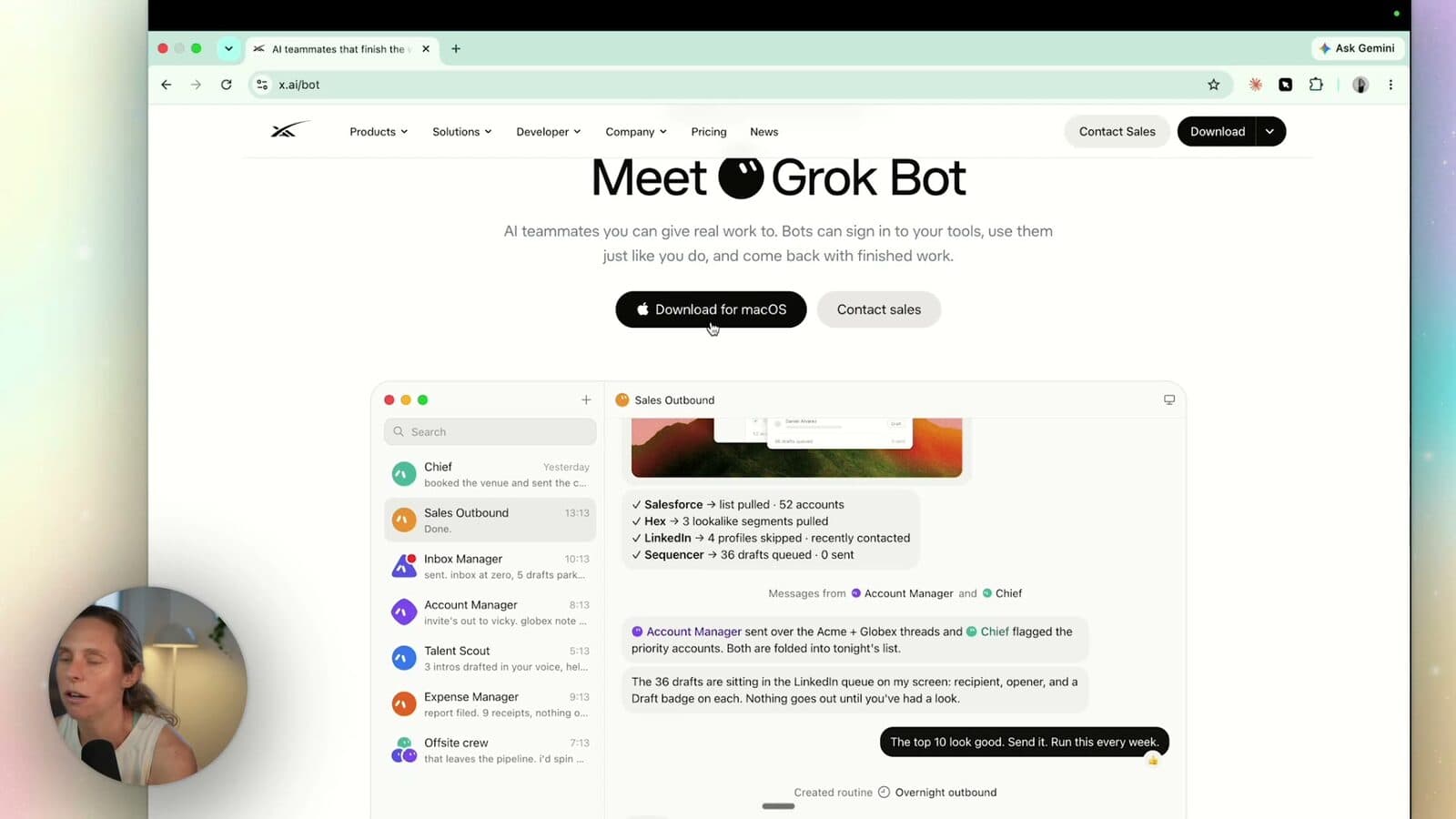
Grok Bot setup is four steps: download the desktop app from x.ai/bot, pick a plan, connect your tools and switch off the actions you don't want it taking, then create bots and put them on routines. I did the whole thing without writing a line of code.
The part nobody covers is what happens after that. You end up with eight bots pinging you, which is just a new inbox with worse manners. So this walkthrough also covers the fix I landed on — middle-manager bots that talk to each other and only come to me when there's a real decision — plus the three things about Grok Bot I genuinely don't love.
What is Grok Bot?
Grok Bot is a desktop app from Elon Musk's Grok team that runs AI agents which go off and do work in your actual tools. The product page in the video describes it as "AI teammates you can give real work to. Bots can sign in to your tools, use them just like you do, and come back with finished work."
The useful mental model is brains versus the apps that drive them. Grok, Claude and ChatGPT are the brains — the large language models. Grok Bot, Claude Code, Codex, OpenClaw and Hermes are the agent harnesses: the layer that sits over the top and decides how the model behaves.
That distinction matters more than it sounds, because Grok Bot is built to be proactive by design. It's designed to go out and do things, which includes replying to messages. Leave the permissions wide open without telling it otherwise and it will send that email. Not a bug — that's the app doing exactly what it was built to do.
Step 1 — Download the app and pick a plan
You need the desktop app, so head to x.ai/bot and download it for your operating system. There's a phone app too, and that's one of my favourite things about it — I can be out somewhere, get an update from a bot, and fire off a new task without going near my laptop.
Then there's the plan question.
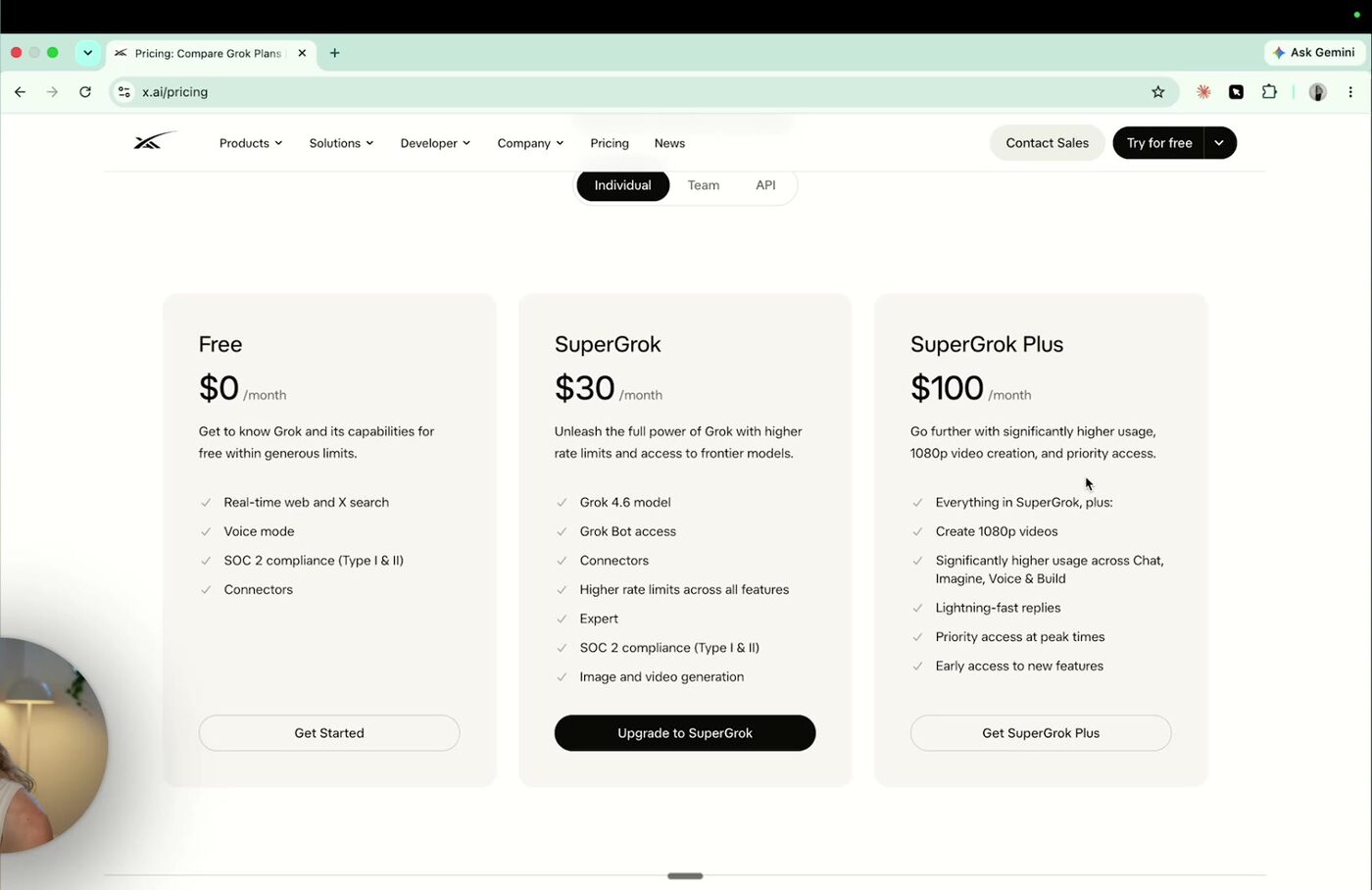
Update 23/10/2026: xAI changed how Grok Bot is sold on 12/10/2026. It now comes with The X Subscription, and Premium at US$30 a month is the cheapest plan that includes it. The US$8 Plus plan doesn't. If you already pay for a SuperGrok plan or a paid Cursor plan, you can still link it (xAI's pricing page, checked 23/10/2026). The table below is how the plans looked when I filmed.
| Plan | Price | Listed on the plans page |
|---|---|---|
| Free | US$0/month | Real-time web and X search, voice mode, connectors |
| SuperGrok | US$30/month | Grok 4.6, Grok Bot access, connectors, higher rate limits, image and video generation |
| SuperGrok Plus | US$100/month | Everything in SuperGrok, plus 1080p video, significantly higher usage, priority access at peak times |
Read that table as a snapshot, not a rule. Those are the individual plans exactly as they appeared on x.ai/pricing while I filmed on 17/09/2026 — "Grok Bot access" sat on the SuperGrok tier and above. My own line in the video is that you can start free and you'll hit the limit fast. Plans and inclusions shift constantly at this end of the market, so check x.ai/pricing before you pay for anything.
Once you're in, settings shows your usage. Mine was sitting at 3% of my weekly limit when I filmed — and I hadn't really gone hard on it at that point, so treat that as a light week, not a benchmark.
Step 2 — Connect your tools, then switch off what you don't want it doing
Connectors (Grok Bot calls them plugins) are where this app earns its money for non-technical people. Gmail, Google Calendar, Slack — one click each, and half the time you don't even go looking for them. I told my Chief of Staff bot to add my calendar and it surfaced the login right there in the chat. Same with Kit, my email marketing platform, which doesn't have a plugin at all. It worked out how to connect it anyway.
Two things worth knowing.
You can add multiple accounts. Several Gmail accounts, side by side. This has been the single most common question I get about connectors in every other tool, so it's a real one. (If you want the Claude version of this, I wrote up Claude connectors for Gmail and calendar — same idea, different app.)
Every connector has a tool list you control. Open the connector and you get every action toggled individually — create draft, update draft, send message, reply, forward, label thread, trash thread. Mine was sitting at 31 of 31 enabled.
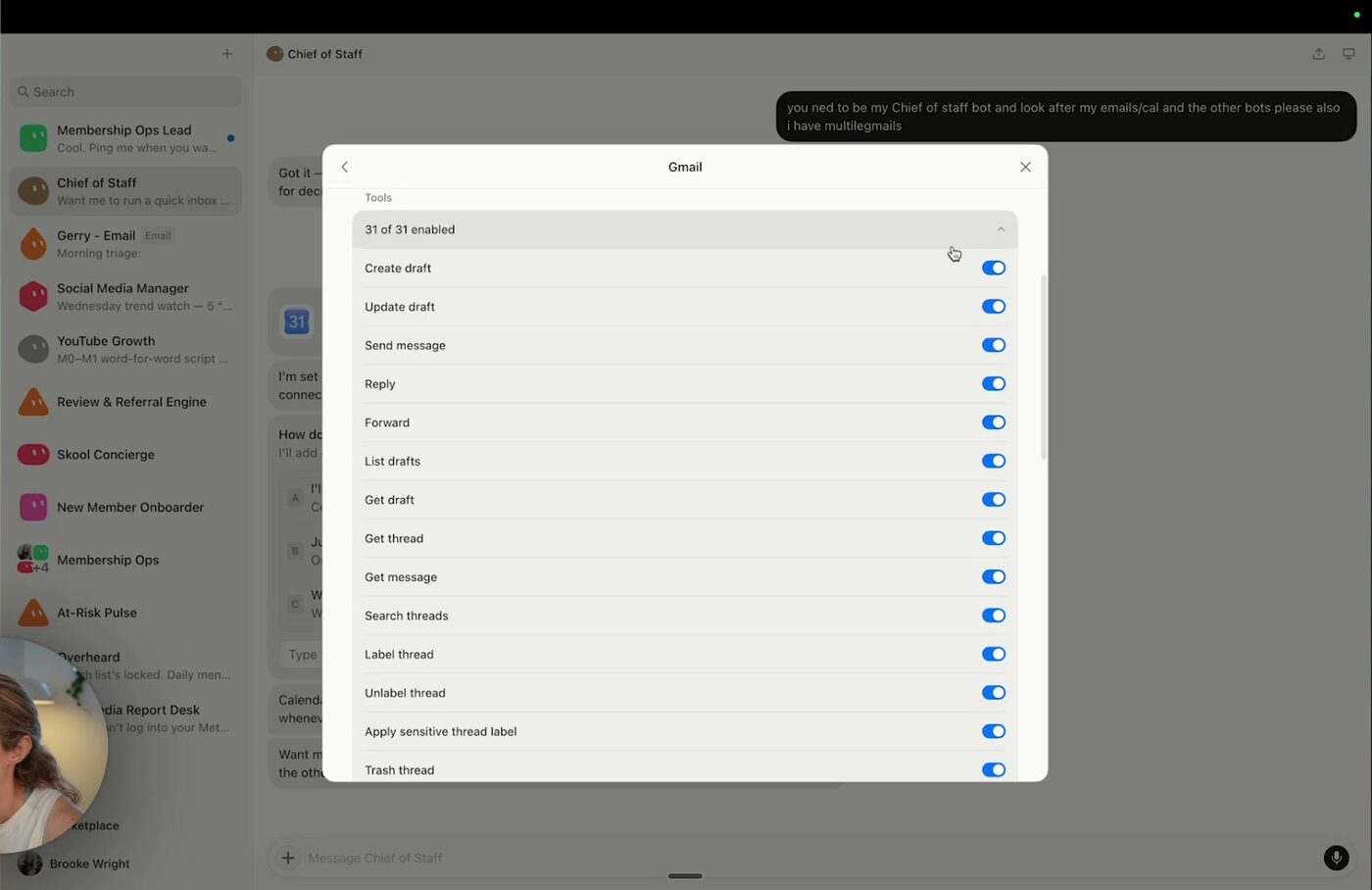
Go through this list like you're onboarding a new staff member on a tight leash. If you never want this bot sending an email under its own steam, toggle Send message off and stop relying on the prompt to hold the line. Given how proactive this app is, the toggle is the honest control. The instruction is a hope.
Step 3 — Build a bot team with a middle manager
Here's the problem with agents, and it took me a while to admit it: most of the time they create more work for you, not less. Every bot reports to you. Every bot pings you. You wanted a team and you got a group chat you have to supervise.
What fixed it was middle management.
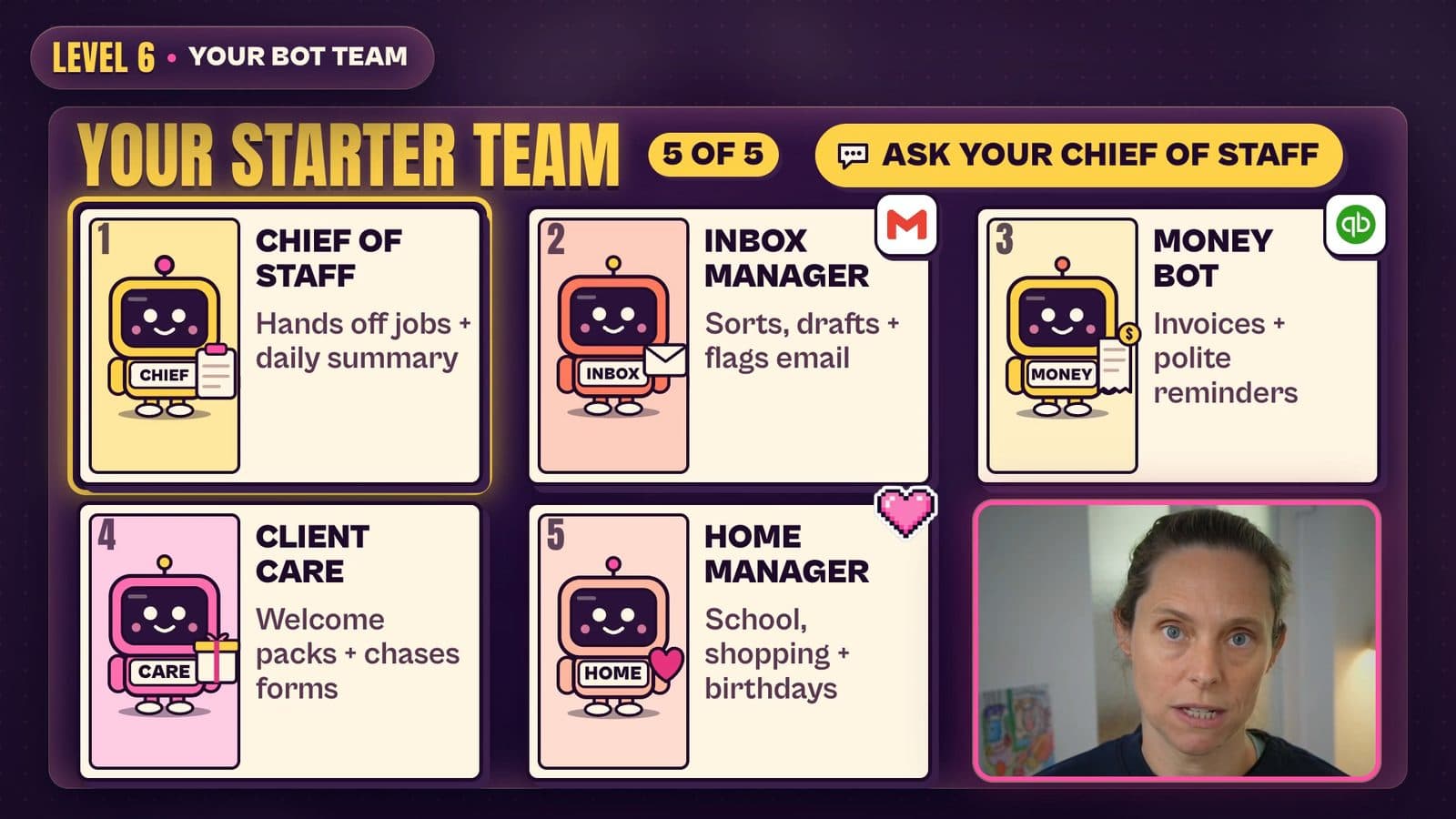
I have a Chief of Staff, a Membership Ops Lead, a Skool Concierge, a New Member Onboarder, a Social Media Manager, a YouTube Growth bot and a few others. The concierge and the onboarder don't report to me — they report to the Membership Ops Lead. They have a group chat. They work things out in there, and I only get pinged by the ops lead once the work is actually finished.
You can click into any two bots' conversation and read what they said to each other, which is how I know my Chief of Staff introduced itself to the ops lead, explained what it owns and set the rule: escalate decisions when useful, and only pull Brooke in for a real yes or no.
To build one, hit the plus button and choose create a new bot or create a group chat — or just tell your Chief of Staff to do it, which is more in the spirit of the thing.
Step 4 — Set routines that run while your laptop is off
Routines are Grok Bot's scheduled tasks. If you've used Claude Code or Codex, these are cron jobs — a saved instruction on a repeat.
The bit that surprised me: Grok Bot runs them on its own computer. Mine can be shut, and the routines still fire. Open it up and you can see the machine it works from — Chrome, a file manager, a terminal. It reaches the internet from there, and it can also reach files on your actual computer.
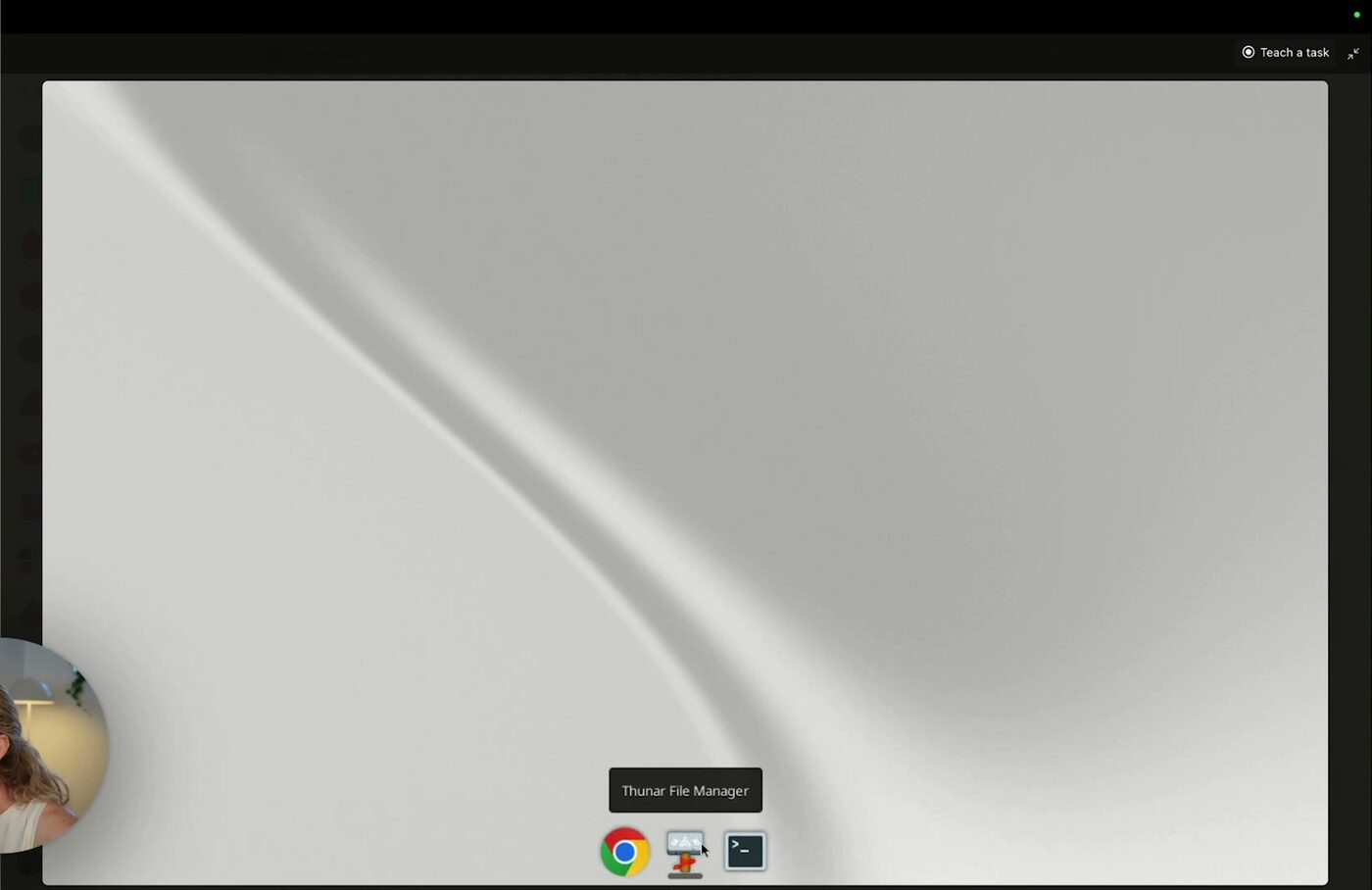
See that Teach a task button? Hit record, do the task yourself on its computer — open Gmail, filter your inbox the way you filter it — and it hands that back to Grok Bot as something it now knows how to do. Showing, instead of describing.
My Social Media Manager runs a routine every Monday at 9am hunting content ideas for my channel and dropping them into Slack. Setting it up meant signing into Slack once. My email bot watches for brand deals and drafts replies I approve or bin.
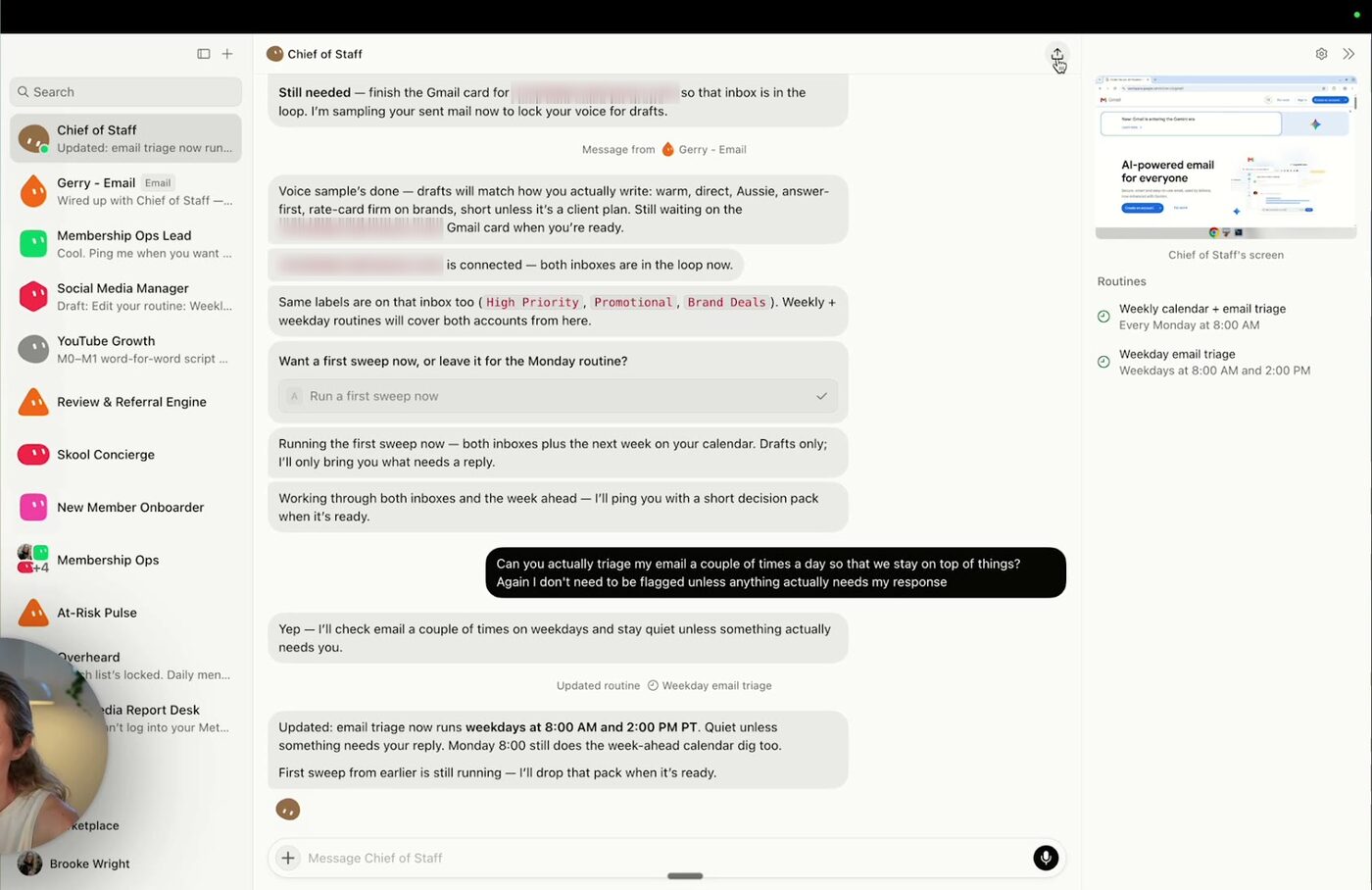
One setting to find early: notifications. Mine were going to my phone and it was a lot. There's a toggle in each bot's settings. Use it. The whole point is fewer interruptions, not more.
(The cron-job-versus-cloud distinction is the same one I unpack in Claude Code goals, loops and routines if you want the longer version.)
Step 5 — Delegate with one proper prompt
Don't build routines by clicking through a settings panel. Talk to the bot about what you want off your plate and let it write better routines than you'd have thought to write.
This is close to the prompt I gave my Chief of Staff on camera:
I want you to check my calendar weekly for me as well as my emails. I want you to triage my emails for me, flag anything that actually needs my response. Can you go through my past sent emails and learn how I actually respond to people so that the drafts are in my voice. I don't want you to send anything out, you just need to have drafts ready for me to approve. Can you also label things — anything that's high priority, anything that's promotional. I also want to label for brand deals. When a brand deal comes in, we do have Jerry the email manager — can you delegate out to him? He needs to research the brand, make sure it's legit, make sure it's aligned with my audience. And I don't really want to see anything unless it fits that criteria.
Four things are doing the work in there: what to do, the voice to learn it from, a hard never (don't send), and who to hand off to.
It came back with routines set for a Monday week-ahead check and email triage on Tuesdays and Fridays. Twice a week wasn't enough for me, so I asked for more and it moved triage to weekdays at 8am and 2pm. Then it messaged Jerry and handed over the brand-deal rule, unprompted.
That's the delegation muscle. It works the same in Grok Bot. It works the same in Claude Code. Say the outcome, name the constraint, name who else is involved.
Step 6 — Share a bot as a template
Built something good? Hit share as a template and Grok Bot packages the bot up for someone else to run. It's the same idea as sharing skills in Claude or ChatGPT.
There's also a marketplace inside the app where people publish pre-built bots, and you can sell them. If you're genuinely excellent at something — SEO, cold outreach, bookkeeping — that's a real distribution channel for the thing you know.
Three things I don't love about Grok Bot
1. The bots are yours alone. You can only interact with your own bots. Fine for me, because I'm a solo founder and it's literally just me running this business. But if you have staff, you can't put a real human in a chat alongside your bots. You can share a bot as a template and that's it. For a team of any size, that's the biggest gap in the product right now.
Update 23/10/2026: xAI added Team Bots on 26/09/2026. You can now publish a bot to your team, and each teammate chats with it in the app or in Slack, in their own private conversation, with usage coming out of their own allowance (Grok Bot changelog).
2. The bot list gets messy fast. Everything sits in one flat list. I'd love to group them and see only my middle managers, with their reports tucked underneath. There's a search box, but the more bots you add the more crowded it feels, and I'm already finding it a bit much.
3. You can't read the memory. Grok Bot builds memories as it works. I can't open them. I can ask it what it's doing and that's about the extent of the oversight. So if you're handing real business work to these bots, set up a Notion database or a Google Sheet and make every bot log its work there. Then the record lives somewhere you can actually read, sort and check — instead of inside a system you have to take on faith.
Should you switch to Grok Bot?
Depends what you want it to do.
Grok Bot is the easiest of these apps for a non-technical person to get running. The connectors are genuinely one click, multiple accounts work, the phone app is good, and the bot-to-bot delegation is a real feature rather than something you have to engineer. If you've bounced off agent tools before because of setup friction, this is the one to try.
The trade-offs are the three above: solo-only bots (now partly fixed by Team Bots), an interface that clutters up, and memory you can't inspect. And the proactivity that makes it feel capable is the same thing that will send an email you didn't sign off on, so the permission toggles are not optional.
If you're weighing this against other options, ChatGPT work vs Claude Cowork covers the same "should I switch" question for the two apps most people are already in.
FAQ
Do I need a paid plan to use Grok Bot?
Yes. Since 12/10/2026, Grok Bot comes with The X Subscription: Premium (US$30/month), Super (US$100) and Ultra (US$200) include it, and the US$8 Plus plan doesn't. All of them share one weekly usage pool across Grok and Grok Bot. Existing SuperGrok and paid Cursor plans can still be linked. When I filmed on 17/09/2026 it sat on SuperGrok and above, and I found the free limits came up quickly once I was running bots. Check xAI's pricing page for your country before you subscribe.
How do I install Grok Bot?
Download the desktop app from x.ai/bot, sign in and pick a plan. The phone app needs iOS 18 or later, or Android 9 or later (Grok Bot mobile docs). Everything after that is clicking through logins, which Step 2 above walks through.
How do I connect Grok Bot to Gmail and Slack?
Open the plugins (Grok Bot's name for connectors), choose Gmail or Slack and sign in. Or ask a bot to add it and it'll bring up the login in the chat. Then open the connector's tool list and switch off any action you don't want it taking, like Send message. You can add more than one Gmail account.
Where do I check my Grok Bot usage?
In the app's Settings, under Usage. Your plan gives you a weekly pool that resets each week and doesn't roll over, and when it runs out the app shows a usage-limit notice instead of running the bot. Bots messaging each other use it up too, so a chatty bot team can burn through a week faster than you'd expect.
Do Grok Bot routines run when my computer is off?
Yes. Routines run on Grok Bot's own machine, so they fire on schedule whether your laptop is open or shut. That machine has its own browser, file manager and terminal, and it can also reach files on your computer.
Can I stop Grok Bot sending emails on my behalf?
Yes, and you should do it with the toggles rather than the prompt. Open the Gmail connector, find the tool list, and switch off Send message, Reply and Forward. Leave create draft and update draft on and you get drafts to approve instead of mail you didn't authorise.
Can my team use my Grok Bot bots?
Yes, since 26/09/2026. Team Bots let you publish a bot to your team, and each teammate chats with it in the app or in Slack, in their own private conversation, using their own usage allowance. You can also still share a bot as a template for someone to run in their own account. When I filmed this, bots were individual to each account, so the video shows the older setup.
Do I need to be technical to set up Grok Bot?
No. The setup is downloading an app, clicking through logins and typing what you want in plain English. The harder skill isn't technical — it's learning to delegate properly: naming the outcome, the constraint and the handoff.
The setup is the easy half. The part that decides whether any of this saves you time is how you structure the delegation — which bots exist, who they report to, and what they're never allowed to do without you.
That's what we build together inside the Wright Mode membership. Bring the tasks you want off your plate and we'll design the bot team and the prompts around them, alongside a group of women doing the same thing in their own businesses.