Opened Claude, asked a few questions, then wondered what all the fuss was about? Start with Projects and Skills.
Projects hold the context for your work. Skills hold the instructions for repeatable tasks. Set up a project for one client or part of your business, then use a skill for a job you do regularly.
Here is how I use both, with my own client workflows and screenshots. The screenshots show the setup when I recorded the walkthrough; menu labels can change.
(If you're still deciding whether to use Claude over ChatGPT, start with Claude vs ChatGPT for business — that one breaks down the decision. This post assumes you've already picked Claude.)
Get the setup right before you build anything
The shortest useful setup: create one project, add a current business brief, enable one relevant skill and test a familiar task. Memory imports and custom styles are optional; you can return to them later.
Before projects and skills, the foundation. Open Claude, jump into settings.
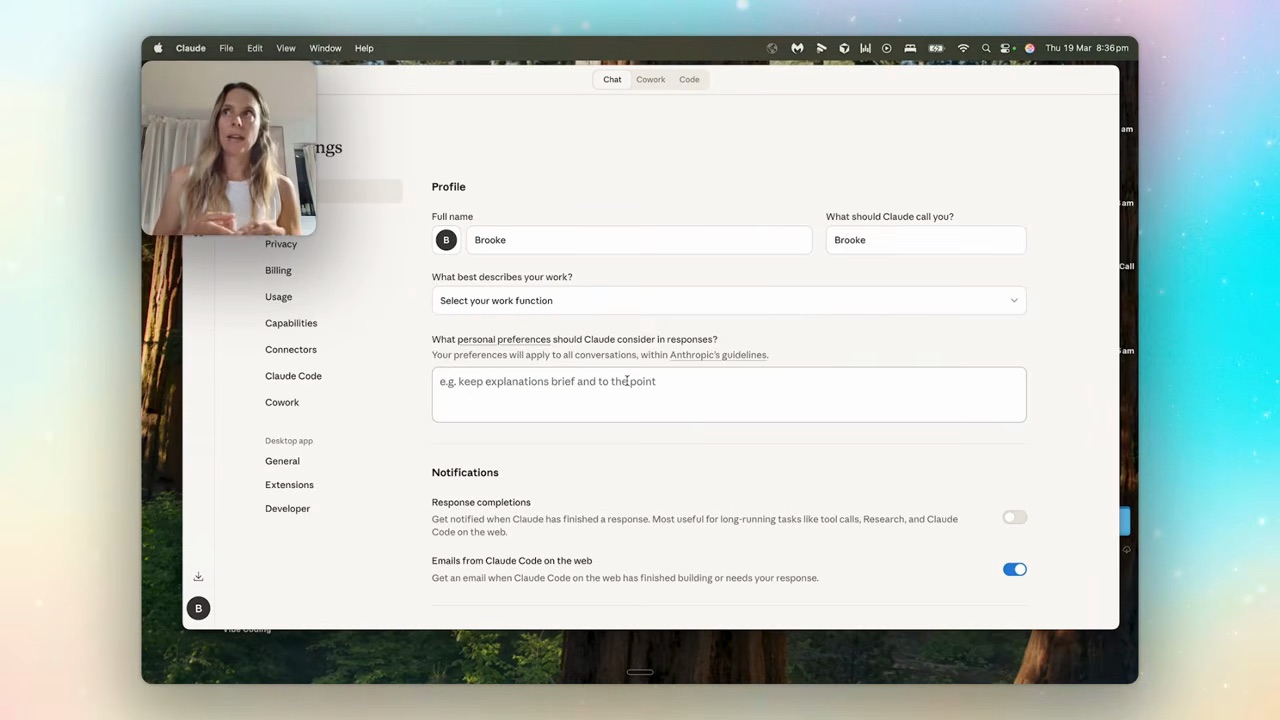
Three things to do here, in this order:
- Custom instructions. Tell Claude who you are, what you do, what tech stack you work with, and how you want it to respond. Want short answers? Want it to push back? Put that here. If you've already done this in ChatGPT, copy-paste your instructions across.
- Memory. Under capabilities, turn on "search and reference chats" and "generate memory from chat history." The first lets you say things like "Hey Claude, jump back to our chat from two days ago about that spreadsheet" and have it actually do that. The second lets Claude build up a picture of how you work over time.
- Import your old memory. If you've used ChatGPT for a while, there's a prompt under "import memory" that exports everything Chat has learned about you. Clean it up first — most of what ChatGPT remembers is outdated. Ask Chat to keep only memories from the last 90 days that are still accurate, then paste into Claude.
Start with your current business details. You can refine them after you have used Claude on a real task.
Custom styles — the hidden time-saver
Before we get to projects, one detour. Custom styles are genuinely underrated.
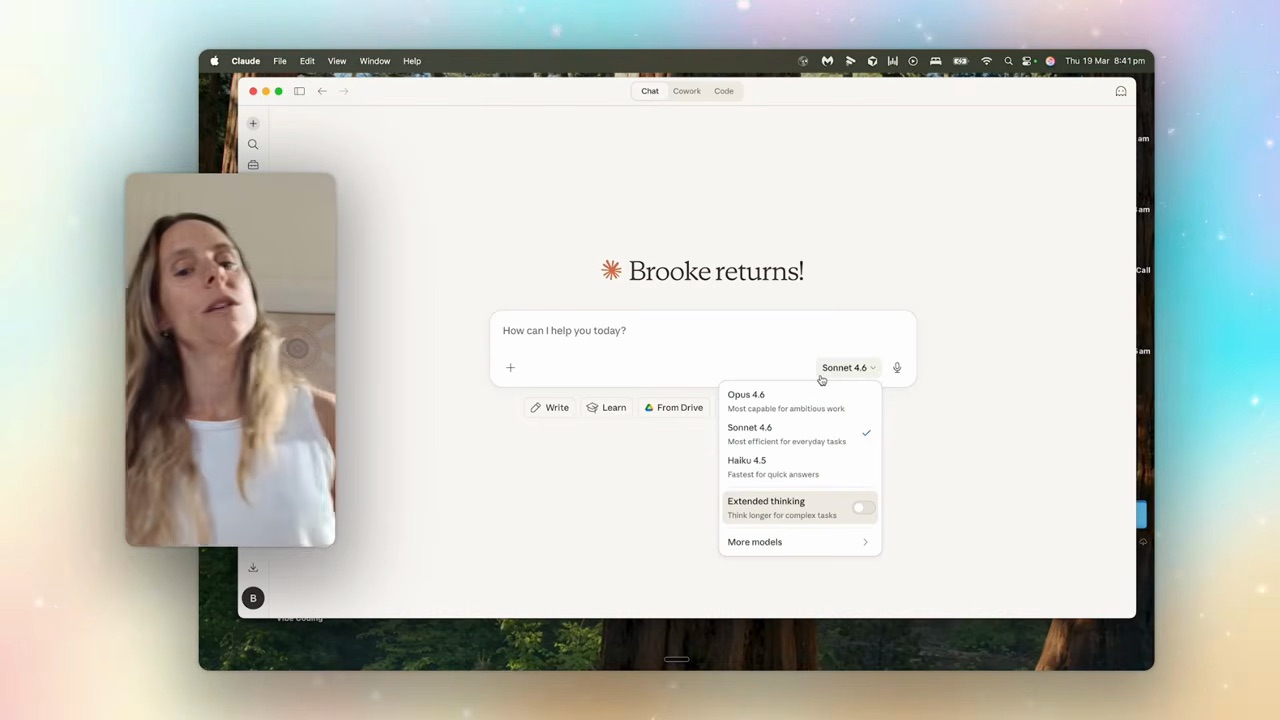
You get a handful of defaults (concise, explanatory, formal). You can also create your own.
I have one called "Brooke's DMs" — Claude knows to respond with no capital letters, casual tone, the way I actually write Instagram DMs. So when someone messages me asking about my next masterclass, I drop the message in, hit my style, and get back a reply that sounds like me. Not "professional response with em-dashes." Me.
Build one for every repeated writing context you have: LinkedIn comments, blog drafts, email replies, client check-ins. Test each style against something you have actually written before you rely on it.
Projects — the real upgrade
Here's where Claude stops being random chats and starts being infrastructure.
A project is a workspace. Custom instructions, knowledge base files, chat history — all scoped to one area of your business or one client.
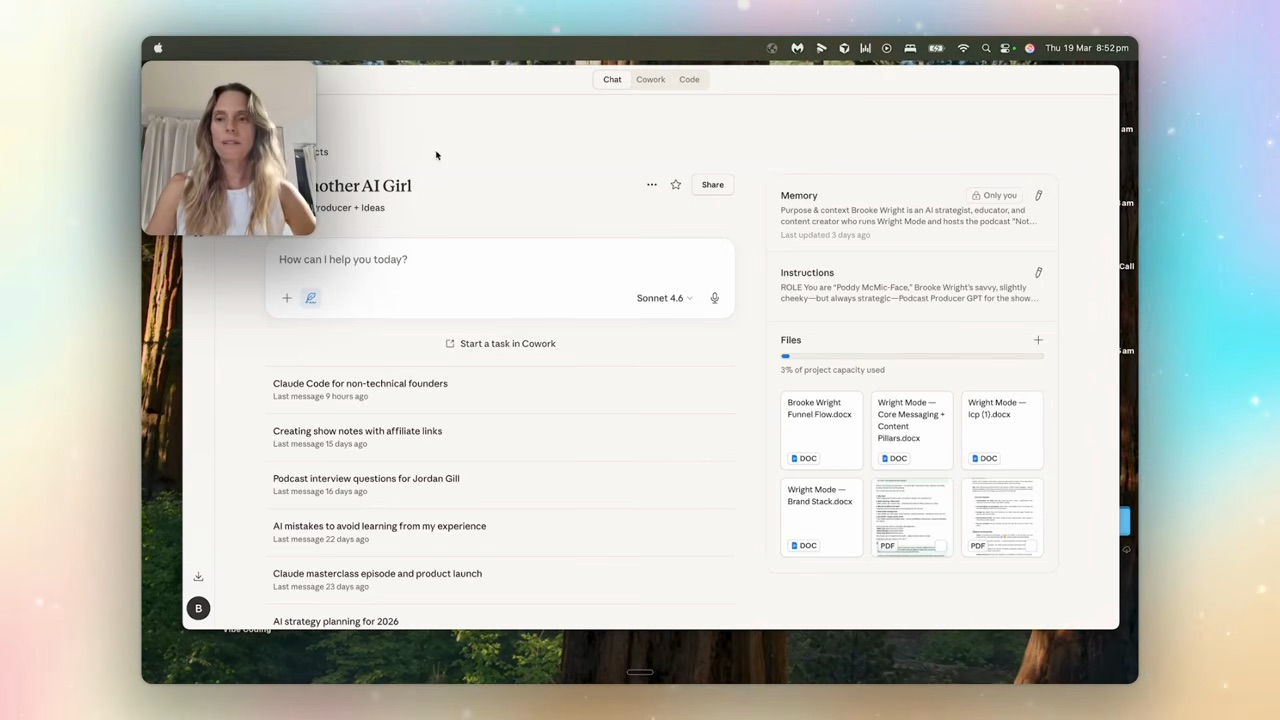
I have a project for my podcast (it acts as my producer). One for my email strategy. One for each consulting client. Inside each, three things matter:
Project instructions
The role Claude plays in this project. Give it a role, an objective, the kinds of tasks you'll ask it to do, the tone you want, and ideally an example of what good output looks like.
If you've built custom GPTs in ChatGPT, this is the same idea — paste those instructions straight in. For collaboration, Claude supports project sharing within Team and Enterprise organisations. Check the current project sharing options.
Knowledge base
The files Claude can reference inside this project. Upload the reference files you want Claude to use. Connected tools can supply additional information when you have enabled the relevant connector and access; connecting an app does not automatically add everything in it to project knowledge.
Chat history
Every conversation you have inside the project is nested here. So you're not hunting through a global chat list six weeks later trying to find "where did Claude and I land on Maya's launch plan?" — it's right there, inside Maya's project.
Keep the important decisions in your project instructions or reference files. Claude also has project memory, depending on your settings. That helps carry context forward, but it is not a complete record of every detail in every chat.
Skills — the part most people skip
Try this distinction with a safe sample. In a “Practice client” project, save a fictional brief: “Maya sells ceramics and wants a launch checklist.” Give the skill the method: “Use the supplied brief; return next action, owner and due date; write ‘not supplied’ for missing details.” Ask for the checklist. The expected result names Maya’s launch and leaves absent dates unknown. The project supplies the facts; the skill supplies the format. This is an illustrative test, not a real client record.
If projects are workspaces, skills are repeatable workflows. The moment Claude stops feeling clever and starts feeling like it's actually working for you.
A skill is a folder of instructions and, where needed, scripts or reference files. Claude loads relevant skills for a task. A skill can describe how to use your connected tools, but it does not grant access to them. You still need the right connectors and permissions.
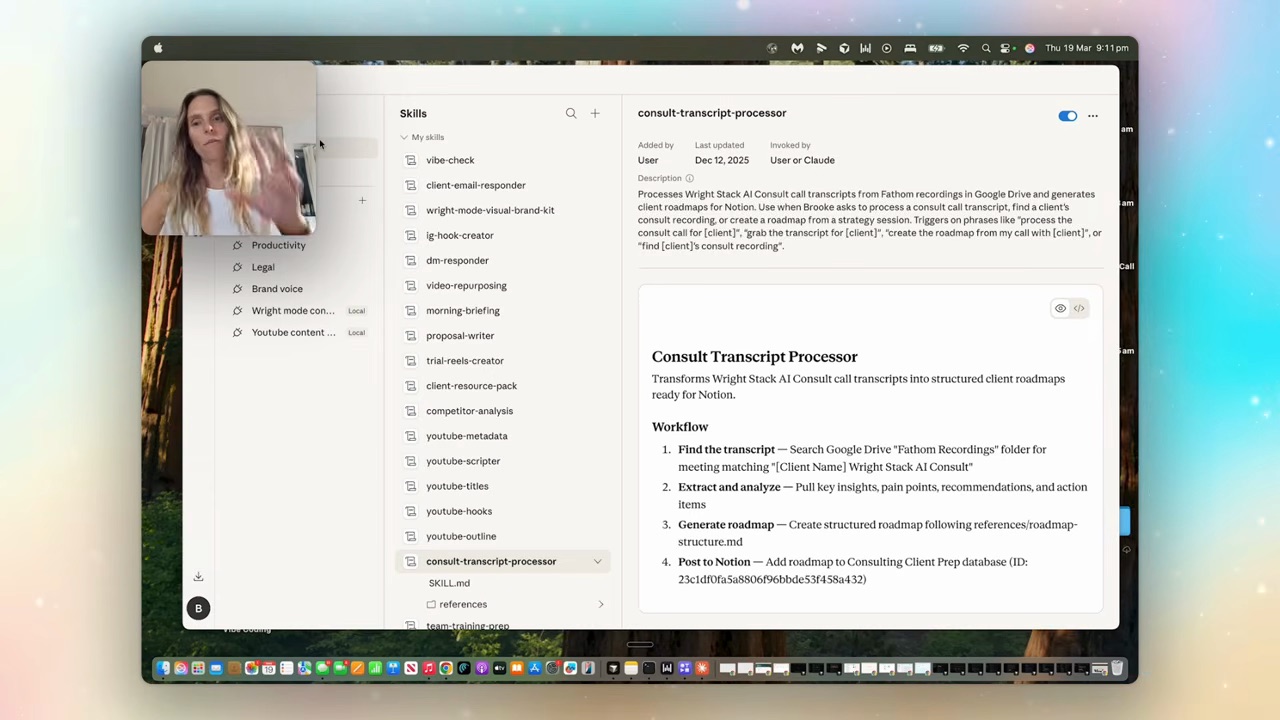
Real example: my consult transcript processor. Every time I finish a consulting call, Claude grabs the transcript from my Google Drive, runs it through my action-plan framework, and pushes the result into Notion as a structured roadmap. I trigger it with one sentence. The whole thing takes maybe three minutes instead of an hour.
Want help building this around your own client work? Inside Wright Mode, we work on real business systems together, with monthly Build w/ Brooke sessions and fortnightly co-working and Q&A. Explore Wright Mode and current plans.
Two ways to build a skill:
1. Start from a chat that worked. When you've gone back and forth with Claude on something and it finally nails the output, say "Can we turn this into a skill?" Claude packages up everything you taught it into a reusable workflow. Next time you don't have to re-explain anything.
2. Build one fresh. Describe what you want the skill to do, what tools it needs, what the output should look like. Ask Claude to draft the skill, then test it on an example where you know what the result should look like.
Skills improve when you update them. If something is off, ask Claude to revise the instructions, review the change and save the updated skill. Using a skill repeatedly does not automatically rewrite it.
How the four pieces fit together
Settings → projects → skills → artifacts. That's the stack.
- Settings are global — they shape how Claude responds across every chat
- Projects are scoped — they hold the context for one client, one launch, one area of your business
- Skills are workflows — they're the repeatable jobs you can trigger from inside a project (or globally)
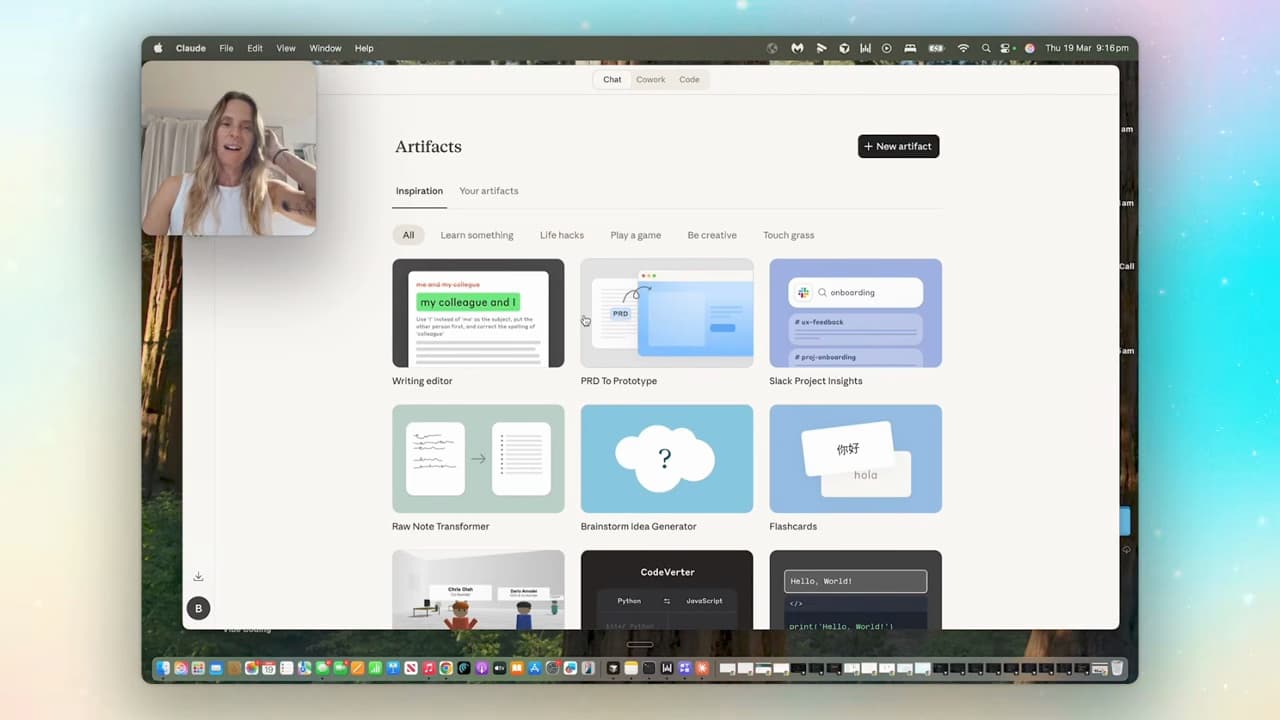
- Artifacts are the output — documents, dashboards, content plans, HTML resources Claude builds and you can download or publish as a shareable link
The pattern I use: set up a project → enable the relevant skills → run a task → check the output before sharing it.
For my corporate trainings, I have a "client resource pack" skill. It pulls the training transcript, builds an interactive HTML resource pack in my brand colours, includes the action items per staff member, and gives me a published link to share. The whole thing happens in minutes. That's the system, not "AI."
FAQ
What's the difference between projects and skills in Claude?
A project is a workspace — custom instructions, files, and chat history scoped to one area of your business (a client, a launch, a content channel). A skill is a repeatable workflow — a small set of instructions Claude reads to do the same task the same way every time. Projects hold context. Skills do work. You can run a skill inside a project to combine both.
Do I need a Pro or Team plan to use projects and skills?
Both are available on Free. Skills require code execution to be enabled. Paid plans provide more usage and additional features; choose based on the limits you actually reach. Anthropic explains how to enable skills.
How do I create a custom skill in Claude?
Start from a task Claude handled well and ask it to turn the instructions into a reusable skill. Review and test it, then add or enable it in the Skills section. Check that Code execution and file creation is enabled in your settings first.
Can I share my Claude projects with my team?
Project sharing within an organisation is available on Team and Enterprise. Check your organisation settings and the project sharing menu before inviting colleagues.
What's an artifact in Claude and how do I share it?
Artifacts are outputs you can work with alongside the chat, such as an interactive HTML dashboard. On individual plans, publishing makes an artifact public to anyone with its link. Team and Enterprise sharing stays within the organisation. Check the contents and audience before sharing client material. Read Anthropic’s artifact sharing guidance.