Build the page from a clear brief, connect Stripe in a sandbox, test the full customer path, then publish on hosting that permits business use. My recorded page generation took under ten minutes after setup. Getting a first checkout ready takes longer.
Zero coding experience. I described what I wanted in plain English. Claude Code's front-end design skill handled the layout, the copy, the styling. I wired in Stripe for payments, deployed to Vercel, sent the link to my list. Done.
Here's the exact build, step by step, written for non-technical founders. You'll need an evening — you don't need a developer.
What you'll need
Four parts. None of them require coding to use.
- Claude Code — Anthropic's coding interface (comes with Claude Pro)
- Cursor or VS Code — a friendlier interface to run Claude Code in (free)
- A Stripe account — for taking payments (free to sign up, fees per transaction)
- A Vercel account — to host the live page (use a commercial plan for this business page)
Check Claude’s plans, Stripe’s fees and hosting costs for your country and usage. Vercel Hobby is restricted to personal non-commercial use.
(If you're brand new to Claude Code, start with Claude Code for non-technical users first. This post assumes you've got Claude Code running inside Cursor.)
Step 1 — Open Claude Code inside Cursor
Open Cursor, hit Open Project, create a new folder called something like claude-code-workshop.
Once the project is open, look for Claude Code in your sidebar. If it's not there yet, search the extensions for "Claude Code" (Anthropic's verified one, around 5M downloads — you can't miss it). Install, restart Cursor, log in with your Claude subscription.
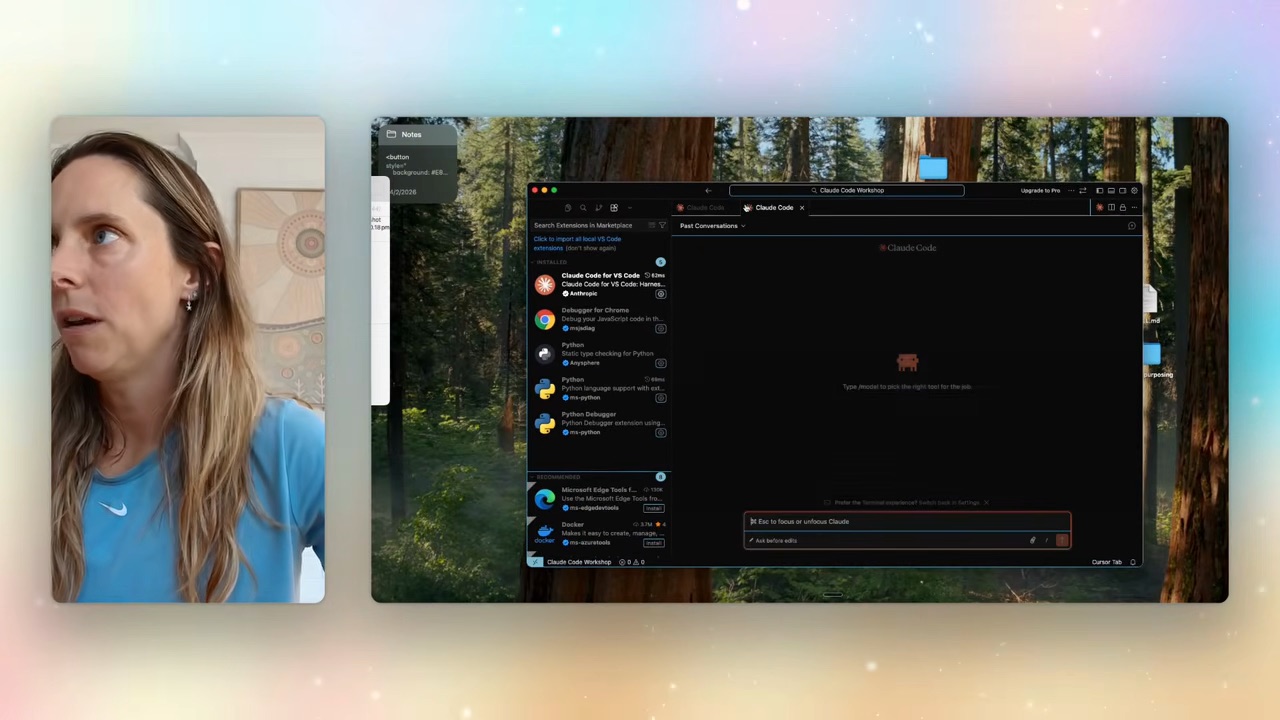
You can also open Claude Code via the command palette: hit search → "show and run commands" → pick Claude Code: Open in new chat.
Step 2 — Download the front-end design skill
This is the bit that makes the build genuinely good rather than ugly. Anthropic publishes a front-end-design skill on GitHub — a markdown file that teaches Claude Code how to design things that actually look professional.
Open Anthropic’s frontend-design skill and read its instructions before installing it. Use the official source rather than a similarly named download.
Back in Cursor, just paste that URL into Claude Code:
"Hey Claude, can you download this front-end design skill?"
Claude Code installs the skill into the project. From now on, anything it builds in this project automatically applies the design principles in that skill — proper spacing, hierarchy, type scale, the works.
Step 3 — Plan the build (this is the most important step)
Switch Claude Code to plan mode. Bottom of the chat window, there's a toggle: "ask before edits / edit automatically / plan mode". Pick plan mode.
Plan mode means Claude reads, thinks, asks questions, but doesn't write code yet. It's the difference between "build me a sales page" and "build me the sales page I actually need."
Give it the brief. The exact prompt I used:
"I'm building a sales page for my Claude Code masterclass. I want to base it on my existing Claude masterclass sales page — go and have a look in my folders for the background and context. Use your front-end-design skill. I'll also be setting up the Stripe MCP for the payment process. Can we think through this plan together? Ask me any questions you need until you're 95% sure you can do this job well."
That last line asks Claude to resolve the brief before building. "Ask me questions until you're 95% sure you can do this well" stops Claude from going off and building the wrong thing. It'll come back with 4-6 clarifying questions — exactly the questions a good designer would ask before starting.
Answer those. The plan firms up. When the plan looks right, exit plan mode and let Claude build.
Step 4 — Wire up Stripe (the part everyone gets stuck on)
Taking payments is the bit that scares non-technical founders. With Stripe's MCP integration, it stops being scary.
Stripe MCP is a way for Claude to talk to your Stripe account directly. You give it permission once, it can create products, prices, and checkout sessions on your behalf.
Inside Claude Code:
"Set up the Stripe MCP. Create a product called 'Claude Code Masterclass' priced at $XXX. Wire the checkout into the sales page."
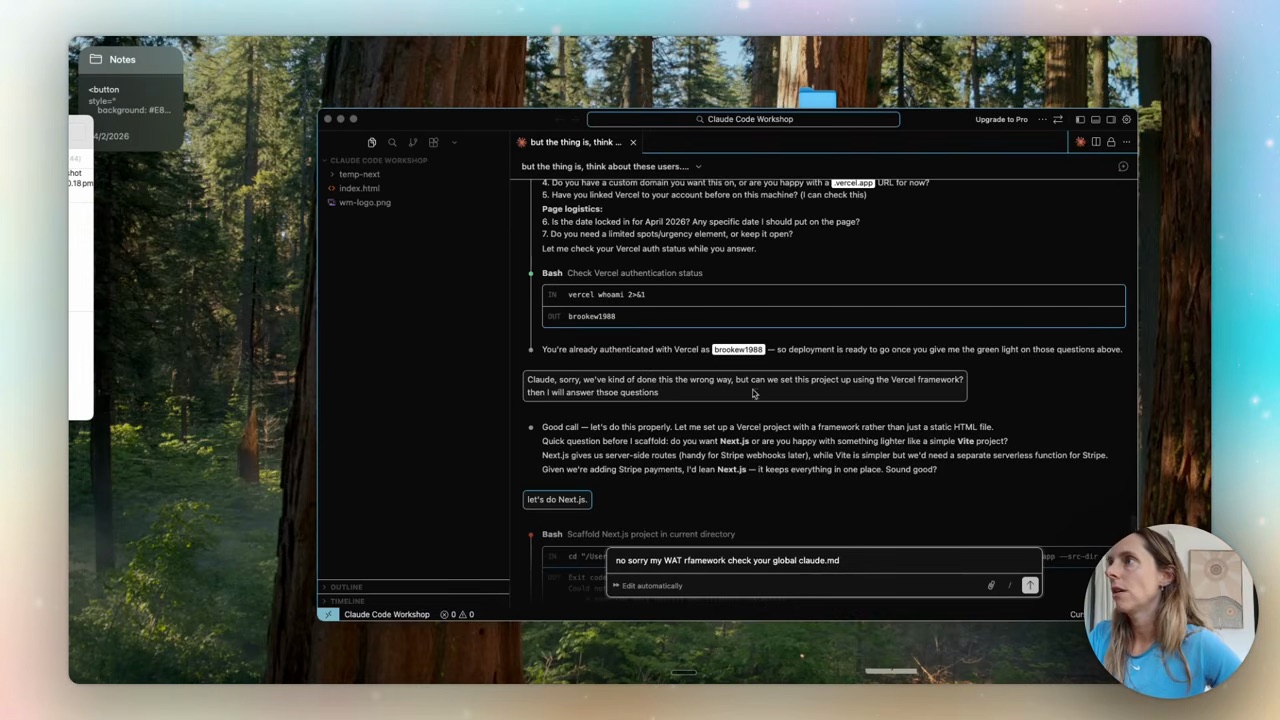
Use Stripe’s official MCP setup, then authenticate the correct account and sandbox. Claude can use the tools you authorise; review products, amounts, currency and actions before applying changes.
Step 5 — Deploy to Vercel
The page only matters if it's live on the internet. Vercel handles this.
"Deploy this to Vercel."
Claude Code asks you to log into Vercel, gives you a vercel.app URL within 60 seconds. Use the preview with a sandbox checkout first. A live checkout can move real money.
If you have a domain — say masterclass.yourdomain.com — connect it in the Vercel dashboard. Two minutes.
Step 6 — Test the full flow + ship
The last 10 minutes are the most important:
- Open the live URL in an incognito window
- Click the buy button
- Use Stripe’s test payment details in a sandbox; do not use a real card for test transactions
- Confirm the receipt arrives
- Confirm whatever happens next (welcome email, calendar invite, Slack notification) actually fires
If anything looks off — formatting weird, button colour wrong, the heading too small, the checkout flow confusing — go back to Claude Code, describe what's wrong:
"The checkout button is too small and the call to action under it is unclear. Fix it."
It edits, redeploys, you re-test. Each iteration takes minutes.
What this actually changed for my business
Before Claude Code, building a new sales page meant: brief a designer, brief a developer, wait two weeks, $4-6k, hope it converts.
My recorded launch reported more than $20,000 in revenue after I sent the page to an existing audience. That is a first-person launch result, not proof the page builder caused the sales. The recording cited here does not establish the currency, accounting period or profit for that figure.
The bigger shift: launches stop being expensive bets. If a page doesn't convert, you don't have to defend the $5k you spent — you just ship a different page tomorrow. The smaller build cost lets me test a draft earlier, while hosting, payment fees and checking the work still count.
(For the wider context on what else Claude Code can build for non-developers, see Claude Code for non-technical users — that's the foundation post that covers IDE setup, plan mode, and basic project structure.)
FAQ
Can I really build a sales page with no coding experience?
Yes — provided you're willing to describe what you want clearly and give feedback when something's off. The actual code is written by Claude Code. You're directing it, not writing it. Skills you DO need: knowing what you want the page to say, being able to give specific feedback ("button too small, heading should be bolder"), and reading the live page critically.
Is Claude Code free?
Claude Code has subscription and usage-based access options. Check the current official access guide before choosing a plan; do not assume a free chat account includes the build capacity you need.
Do I need to know what Stripe MCP, Vercel, and Cursor are before I start?
No, but knowing what each does makes the build smoother. Cursor is your editor (where Claude Code lives). Stripe is your payment processor. Vercel is where your live page is hosted. MCP (Model Context Protocol) is the way Claude talks directly to Stripe so you don't have to copy-paste API keys around. You'll learn enough about each one during the build to know what to do next time.
How long does it actually take to ship a sales page this way?
The build itself: 10-15 minutes once your tools are connected. First time end-to-end (installing Cursor, downloading the front-end skill, setting up Stripe MCP, deploying to Vercel): plan on 2-3 hours. Subsequent builds: 30-60 minutes.
What if I want a real designer to refine it later?
Claude Code's output is a real codebase (HTML/CSS/JS or React). A designer or developer can pick it up and refine it the same way they'd refine any handover. The "AI built it" doesn't mean it's locked into anything. Useful path: ship the Claude-Code version, see if it converts, hand to a designer for v2 only if it earns its way to that level of investment.
If you want to actually build a sales page like this with help — the design, the Stripe wiring, the deploy — that's what we do inside Wright Mode. Monthly Build-with-Brooke sessions where we ship Claude Code projects together. If you’d rather scope a sales page together, book a Wright STACK Consult.