Start with business instructions, create one project, then add a connector and skill for a task you repeat. Test the output on a client example you know well before expanding the setup. This is the practical onboarding guide; the linked comparison covers choosing between tools.
If you're a female founder and you're not using Claude yet, you are leaving hours on the table every single week.
And I don't mean writing cute emails. I mean proposals. Strategy documents. Client content plans. Whole systems Claude can build for you — if you set it up properly.
Most people open Claude (or ChatGPT, or any AI tool), ask one question, get an answer, close the tab. Without saved context, the next task can start from scratch. That's not using AI for your business. That's using it like Google.
In this post I'll walk you through the exact beginner setup I use — the four things that turn Claude from a chatbot into a team member.
Why Claude over ChatGPT for business
I use both. Honestly. But when it comes to running a business, I prefer Claude for the workflows below — and I've covered the full breakdown in my Claude vs ChatGPT for business post if you want the deeper comparison.
The short version:
- Massive context window — you can upload entire strategy docs, meeting transcripts, briefs, and Claude can reference the supplied material, but you still need to check what it retrieved
- The projects feature — properly built for organising work by client or business area (not just chat history)
- Artefacts — Claude doesn't just give you text back, it builds you the document, dashboard, or plan you asked for
The fourth thing is skills — repeatable workflows you create once, and Claude executes them on command. That is the repeatable part.
If you run a business and you're choosing where to start, Claude is the setup I demonstrate here. Let's set it up.
Step 1: Set up custom instructions (your North Star)
Download the Claude desktop app. Mac or Windows. Free plan is fine to start with — you'll upgrade once you actually start using it.
Open settings. The bit that matters is Instructions for Claude.
This is your North Star. Every chat you open will reference these. So spend ten minutes here — it pays you back for the next 12 months.
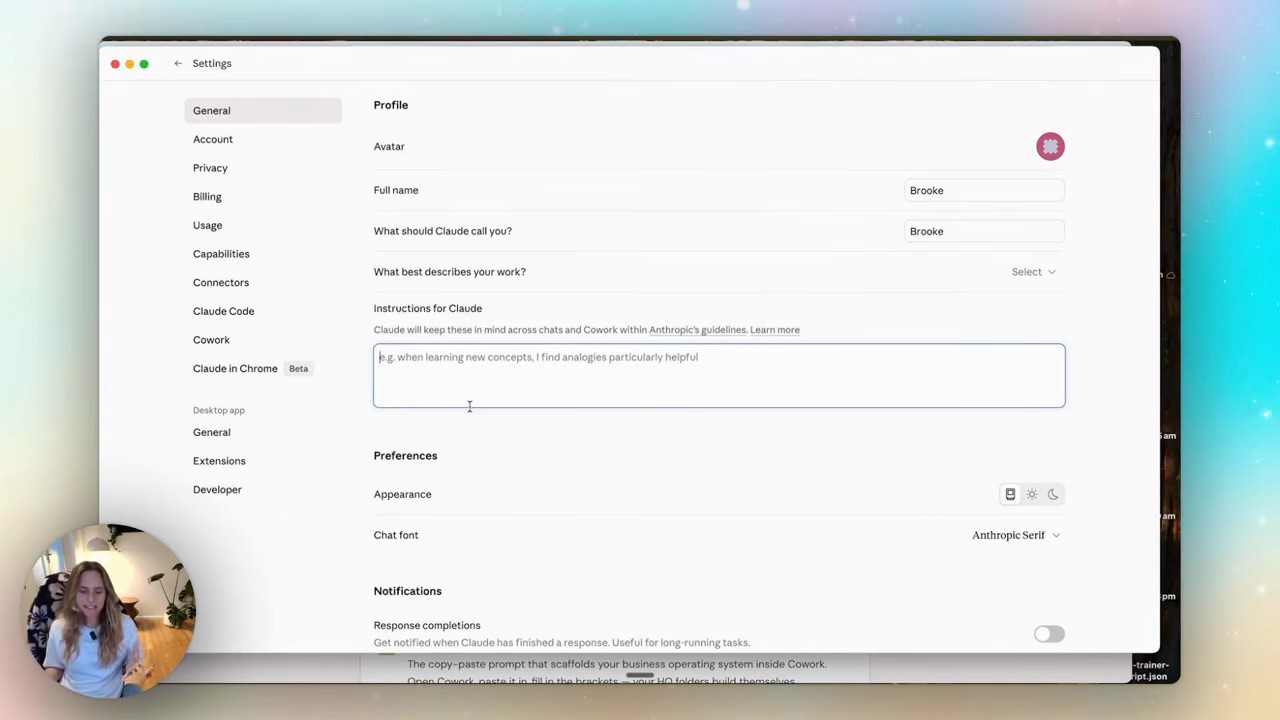
Cover three things:
- Who you are — name, business, what you actually do
- What you're working on — your tech stack, your offers, the kind of clients you serve
- How you want Claude to respond — "explain tech like I'm 14" is genuinely one of my best instructions
That last one matters more than you think. The biggest mistake beginners make is treating Claude like Google. One question, one answer, the next task starts without the relevant context. Setting the North Star means every single chat starts with context already loaded.
Step 2: Turn on memory (and prune it ruthlessly)
In capabilities, toggle ON:
- Search and reference chats
- Generate memory from chat history
This lets Claude do things like — "hey, last week we were talking about a client's content strategy, go read that chat and get yourself up to speed." And it actually does.
You can also import memory from ChatGPT if you've been using that. There's a prompt in settings that surfaces your saved memories — copy/paste it across.
The bit most people skip: prune your memory. Don't dump every conversation you've had with ChatGPT into Claude. Ask Claude to clean it up — "based on our chats from the last 90 days, remove anything irrelevant and give me a tight memory I can paste in." A clean, sharp memory beats a giant cluttered one every time.
While you're in capabilities, also turn on:
- AI-powered artefacts (and inline visualisation)
- Claude code execution and file creation
These let Claude build you documents, dashboards, and plans — not just talk about them.
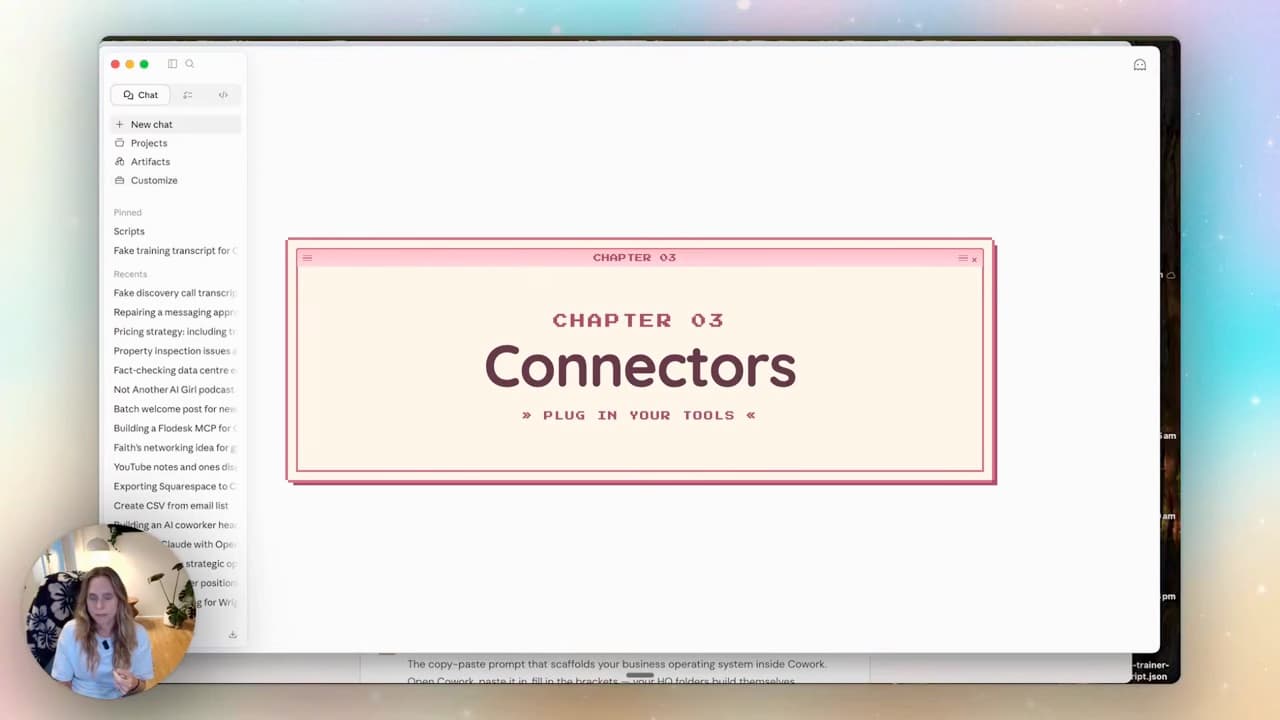
Step 3: Connectors — plug in the tools you actually use
This is where Claude stops being a chatbot.
Go to Customise → Connectors. You'll see a list — Gmail, Google Drive, Calendar, Slack, Notion, Canva, Fathom, GitHub, and more being added every week.
Click Browse connectors and add the ones you actually use. Sign in once per tool.
The important detail: each connector lets you control what Claude can do. Read-only tools mean Claude can only read your inbox or your Drive — it can't change anything. Write and delete tools mean it can draft emails, create labels, edit files. You decide tool by tool, or you can flip them all to "always allow."
For Gmail, current native tools can send, reply and forward as well as draft. Approval is requested by default, but settings can change that behaviour. Use a draft-only instruction and appropriate tool controls for a review workflow. Anthropic documents the current Google Workspace tools.
This is the part that makes everything else powerful. Once Claude can read your Drive and write to your Gmail, the next step gets real.
Step 4: Skills — your repeatable workflows
A skill is a workflow you describe once, and Claude executes on command.
Mine include things like: proposal writer, social strategy content plan, podcast show notes draft, weekly client update. Each one is just a folder with a description, a workflow doc, and any reference files Claude needs.
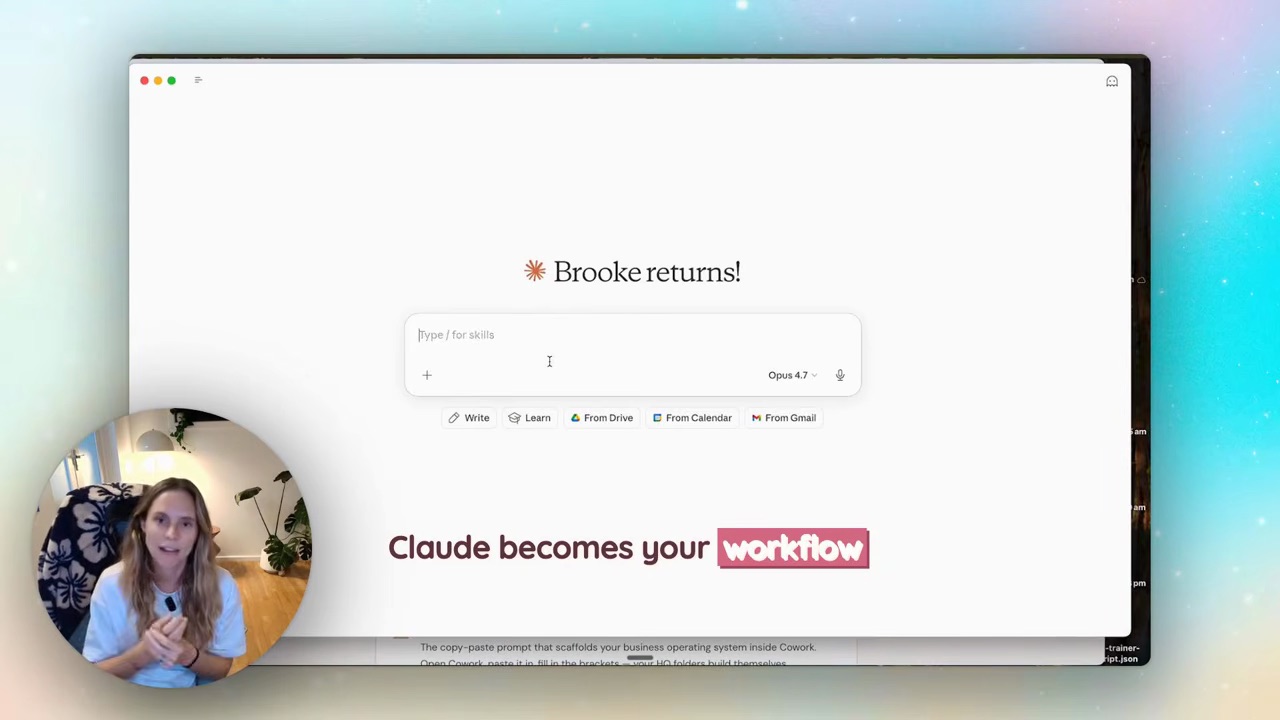
Here's what one looks like in real life:
"Hey Claude, can you jump into my Fathom recordings on Google Drive, grab the discovery call I had recently, and write a proposal based off the transcript?"
What happens next: Claude reads my proposal-writer skill. Searches my Drive (via the connector). Finds the right transcript. Confirms with me it's the right one. Drafts the proposal. Saves it to the right Notion page. Drops a draft email in my Gmail with the proposal link.
All from one prompt.
Skills are the feature I use for repeatable work — I've written a full breakdown of how to use Claude projects and skills if you want to go deeper. Start by creating one skill for the workflow you do most often. Mine was the proposal writer. Pick yours.
Step 5: Projects — where Claude becomes a team member
Projects sit in the sidebar. Each project = a permanent workspace for one client, one product launch, one area of your business.
This is where Claude stops being random chats and starts being a team member.
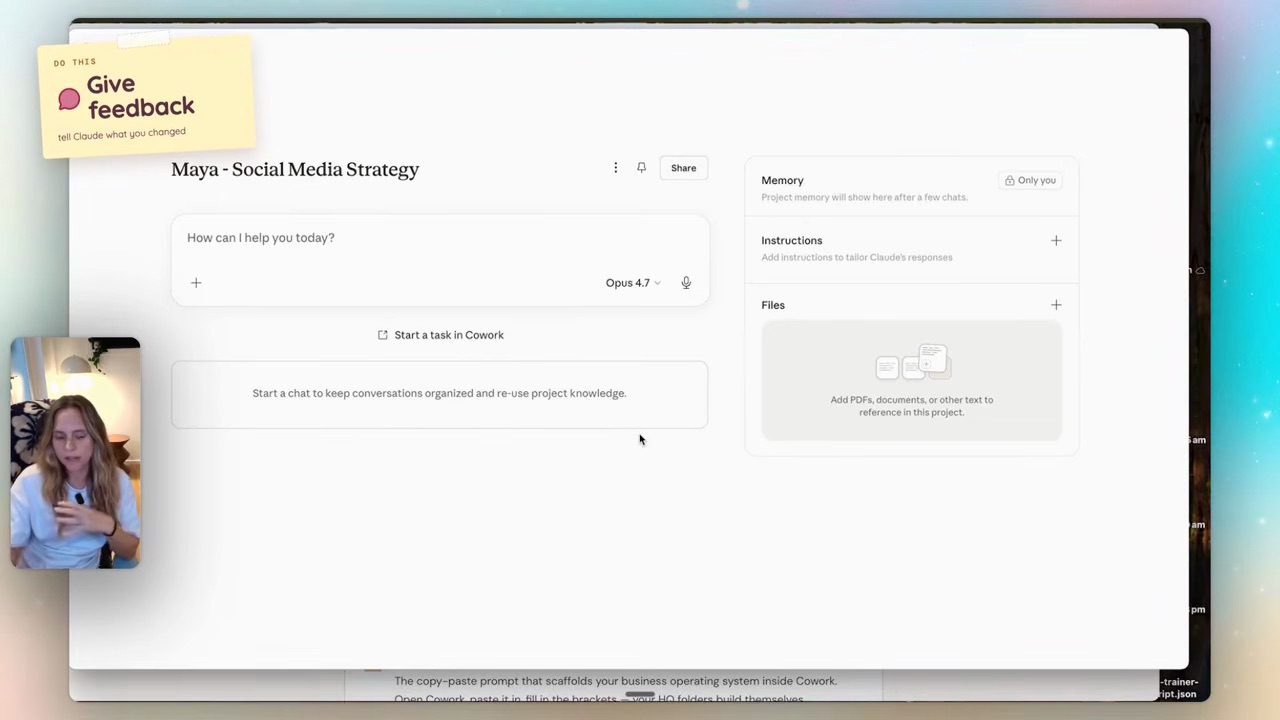
Set up a project. Give it a name (e.g. "Maya — Social Media Strategy"). Add custom instructions specific to that client. Attach files — from your device, or directly from Drive, Notion, Canva, GitHub.
Saved project instructions and reference files supply context for future work. Memory can help, but it is not a complete record. Save important client decisions explicitly and check that the next task uses the current version.
The bit that matters most: give feedback. If you edit something Claude wrote, jump back into the project and tell it. "FYI, here are the bits I changed. Save that to memory for next time." That single habit is the difference between Claude that stays generic and Claude that starts to sound like you.
You can also call your skills into a project. Which means you can have a Claude project per client, with your skills wired in, with all the client's reference files attached, ready to reference when needed. That's the system.
The four money moves, layered together
Here's how the four pieces stack:
- Layer 1: Settings — Claude knows who you are and how you like to work
- Layer 2: Connectors — Claude can read and write across your actual tools
- Layer 3: Skills — Claude has repeatable workflows it can execute on command
- Layer 4: Projects — Claude has permanent context for each client and business area
That's the system. That's how Claude becomes a team member rather than a search engine.
When you're more confident, the next step is Cowork — that's where Claude becomes a properly autonomous assistant. But if you're a beginner, the four above are the money moves. Don't skip them. Don't try and do everything at once. Set up one connector. Build one skill. Make one project.
Do that this week.
FAQ
Is Claude free to use for business?
Claude has a free plan for trying basic work. Check current plans and the requirements of each feature before relying on it. Choose a paid plan when a specific capability or usage limit justifies the cost.
What's the difference between a Claude project and a Claude skill?
A project is a permanent workspace for one client or business area, with its own memory and reference files. A skill is a repeatable workflow you describe once and Claude executes on command. You use them together — a project per client, with skills wired in.
Can Claude actually send emails for me?
Yes, if the enabled connector supports sending and you have authorised it. Native Gmail tools now support sends with approval by default. My proposal workflow asks for a draft to review; that is a workflow choice, not a technical limit of Claude.
Do I need to know how to code to set up skills?
No. Skills are written in plain language — you describe the workflow, what tools Claude should use, and what the output should look like. The skill creator built into Claude walks you through it. If you can write a brief for a contractor, you can write a skill.
Where should I start if I've never used Claude before?
Set up custom instructions today (ten minutes). Connect Gmail and Google Drive (five minutes each). Then pick the one task you do most often and build it as a skill. That's the order. Don't try to do connectors, skills, and projects all in one sitting — pick the foundation first.
If you want help building the four-layer system in your business — the proper one, with skills that connect to your tools and projects that hold real client context — that's exactly what we do inside the Wright Mode membership. It's where I run fortnightly co-work sessions, build-with-me masterclasses, and the community of women using AI properly in their businesses.
For one-to-one help choosing what to build, book a Wright STACK consult.