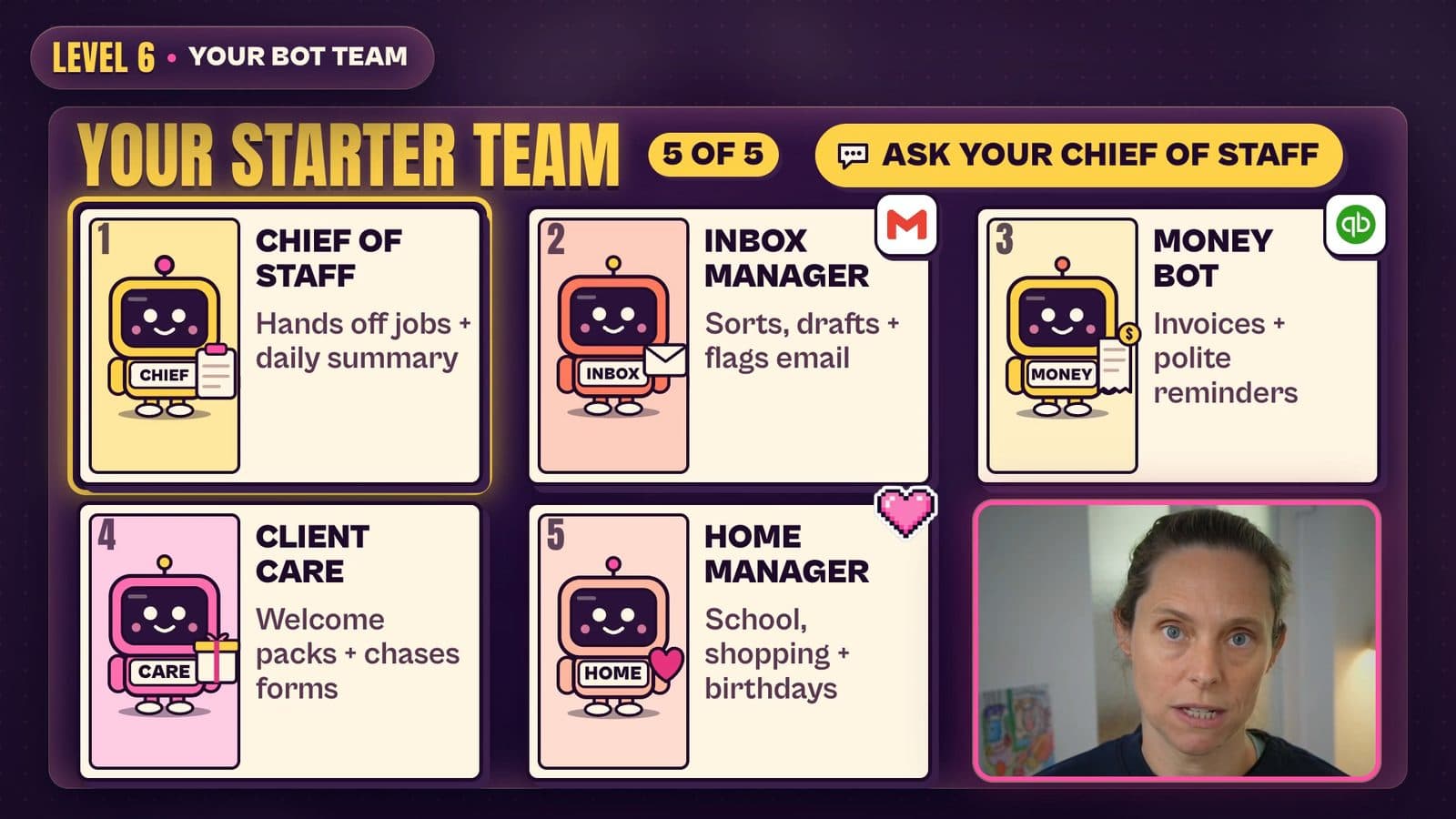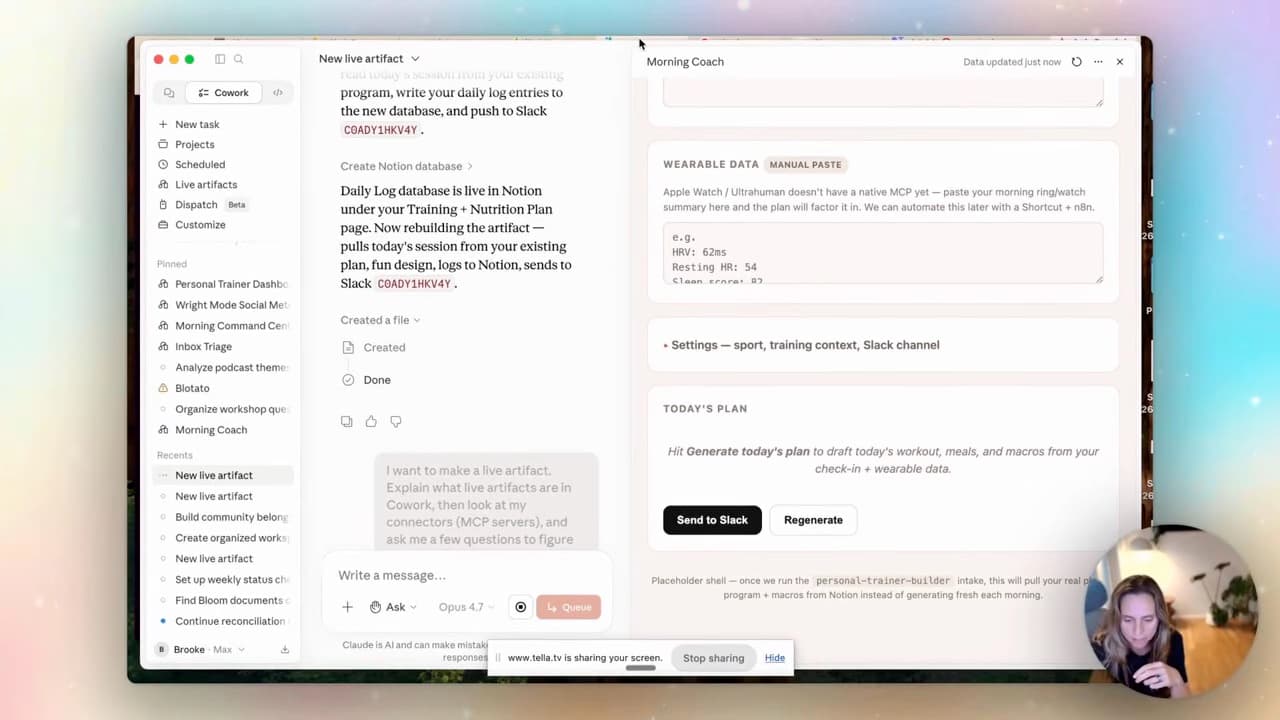
An AI assistant needs a source of truth, the right connectors, a saved task and a verified schedule. In this recording I organised my existing training and meal information in Notion and sent reminders to Slack. The useful lesson is the workflow, not medical or training advice.
I built a dashboard and reminders around my training plan.
Not an app I downloaded — an actual one I built inside Claude Cowork. It tracks my mood, tells me what I'm training each day, pulls in my smart ring data, reads my meal plan straight out of Notion, and every morning at 5:30 it drops a message into Slack telling me what's on for the day and how my recovery is looking.
The personal trainer is just the demo. Once you see how the pieces fit, the same architecture runs a content coach, a money coach, a morning command centre for your whole business. The shape doesn't change — only the goal does.
Why most people are using Claude Cowork wrong
A chat can retain history and, with the relevant settings, memory. The difference here is the saved workflow and scheduled execution, not whether a conversation disappears when you close a tab.
Cowork is different. It's Claude that can actually do things — it has a memory, a calendar, and these things called Live Artifacts that let it reach into Notion, Gmail, Slack and Google Drive and hand the result back to you in a way that's genuinely useful.
Once that clicks, you stop building little one-off things and you start building systems. That's the whole shift. An AI assistant in Claude Cowork isn't a smarter chat window — it's a dashboard that talks back to your tools and runs without you opening a single app.
Step 1 — Connect your tools first
Before you build anything, get Cowork set up properly. Go into customise, and you'll see two things: skills and connectors. Connectors are how Cowork talks to the apps you already live in.
Pick what you actually work with. For me that's Notion (where my meal and training plans live) and Slack (how I talk to all of my agents). I deliberately chose Slack over email — an email just gets lost in everything else, but a ping in a dedicated channel is the first thing I check in the morning.
Connecting is one click each: hit connect, a tab pops up, you sign in to the tool, done. That login is what lets Claude work inside it.
Step 2 — Build the artifact with a conversation
In the recorded interface, I opened the Live Artifacts tab and hit create with Claude. You don't write code — you have a conversation about what you want.
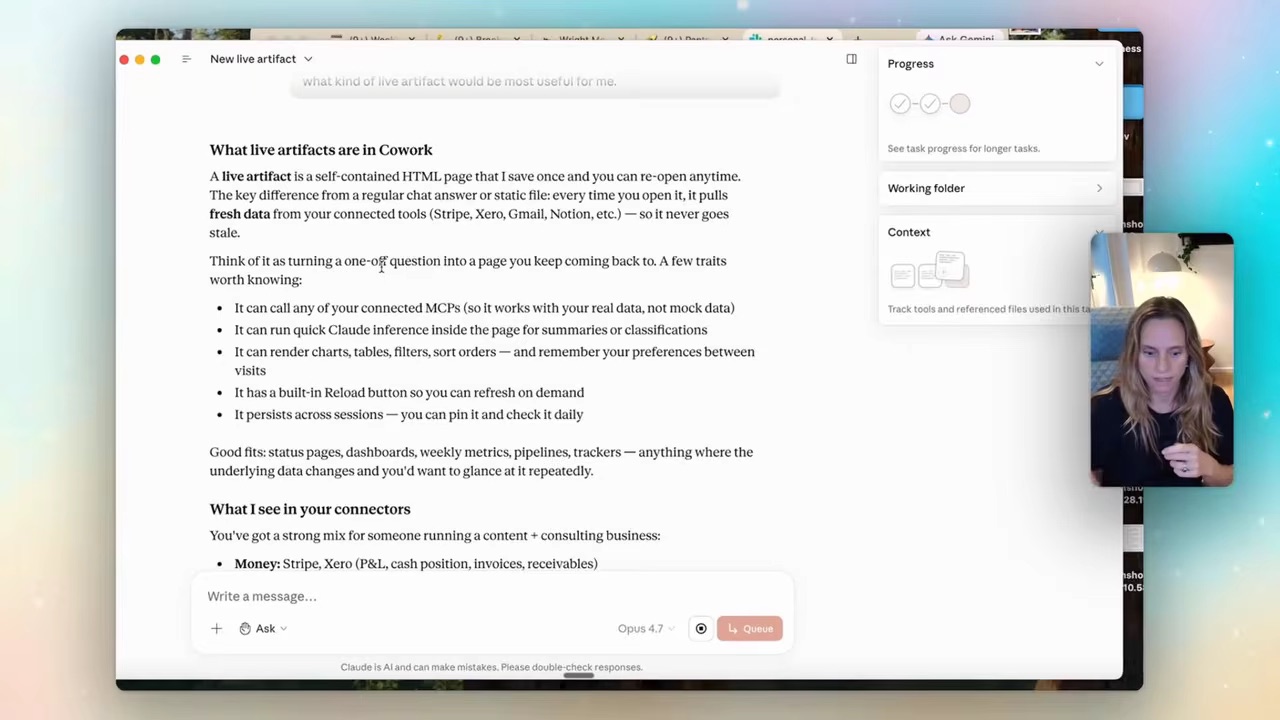
Claude asks you a handful of questions. Which area of your business is this for? How often do you want to open it? And the important one — what do you want to do on this page beyond just looking at it?
That last question is the whole game. A dashboard you only look at is a wall poster. The moment you tell it to trigger an action — generate today's plan, send it to Slack, log what you did — it stops being a dashboard and becomes a system that runs.
This is exactly the leap from clever chatbot to actual assistant. If you want the full picture of how Cowork sits between chat and code, I broke down the whole thing in my Claude Cowork tutorial.
Step 3 — Wire it to Slack and Notion
Here's where the artifact gets its hands. Build the shell first, then tell Claude where everything should flow.
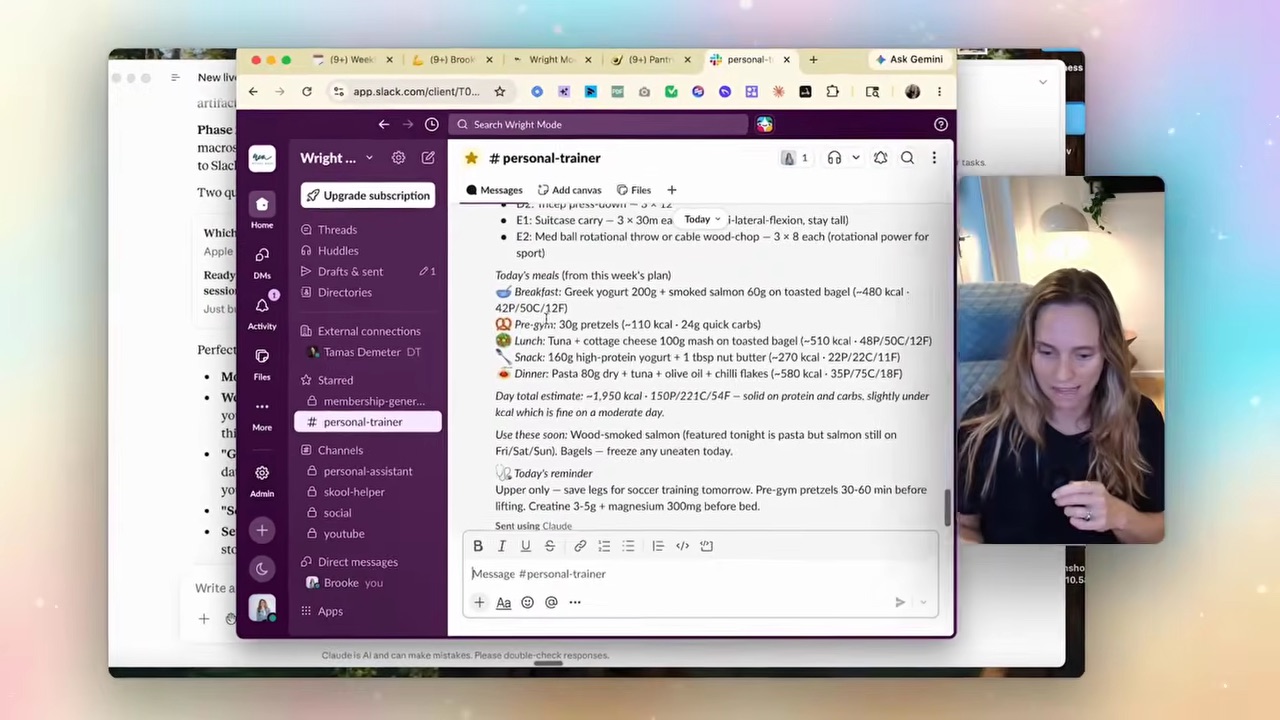
One thing I learned the hard way — you have to give Claude your actual Slack channel ID, not just the channel name. Jump into Slack, click the channel, grab the ID from the bottom. Paste that back into Cowork. Skip this and you'll get DMs instead of pings in your channel. Trust me, I did this wrong first.
Then you just talk to it like a person:
"There's nothing really in this dashboard. Can you create the actual plan in Notion as well, and send it to this Slack channel? I want to log my mood, water, and training — and I get hamstring tendonitis, so keep that in mind."
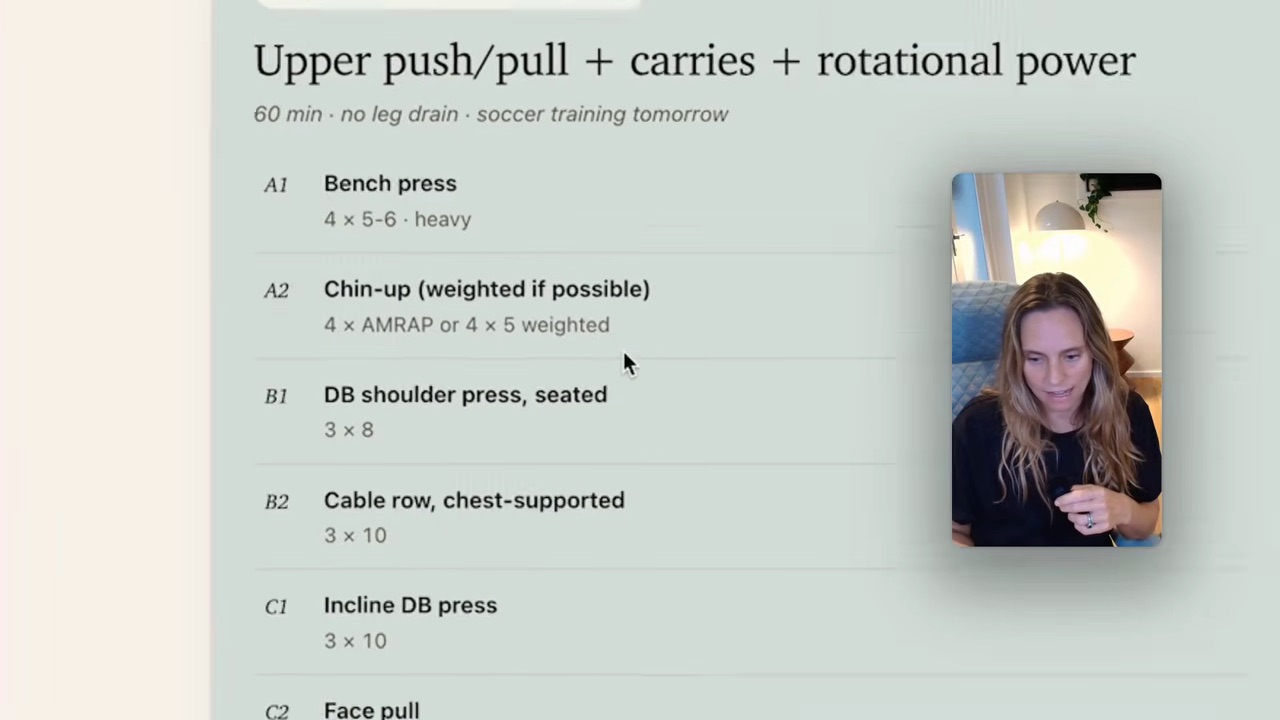
That's it. It goes into Notion, creates the databases it needs, rebuilds the dashboard so it actually looks nice, and starts sending to Slack.
Step 4 — Let it run (and get smarter)
Create separate recurring tasks for the morning reminder and evening log review. State the timezone explicitly, identify the Notion source and Slack destination, and specify what to do if data is missing. The recording describes 05:30 and 18:00 runs; use times that fit your own day. Run each once, check the message and saved log, then verify the next scheduled run actually happens.
The finished thing reads like something a designer made — my training block, my macros, my check-in, my recovery, all in one place I never have to remember to open.
This same shape runs my morning command centre and my social metrics. The personal trainer is just the one I happened to demo. The architecture is the asset, not the example.
FAQ
What's the difference between Claude Cowork and Claude chat?
Claude chat supports history and optional memory too. Cowork adds a workspace for tasks with connected tools and scheduling. Check Anthropic’s memory guide and Cowork setup for current behaviour.
Do I need to know how to code to build an AI assistant in Claude Cowork?
No. The whole thing is built through conversation — you answer Claude's questions about what you want, and it writes the artifact. If you can describe your morning routine, you can build the assistant. (This is the same reason Claude Code works for non-technical users too.)
How much does Claude Cowork cost?
Check Claude’s current plan requirements in the Cowork guide linked above. Connected services can have separate subscriptions or usage charges; confirm the full stack before leaving it running.
Can I use this architecture for things other than a personal trainer?
Yes — that's the point. The same shape (Live Artifact + connected tools + a scheduled action) runs a content system, a money tracker, a project dashboard, or a full morning command centre. You change the goal, not the method.
If you want to build your own — your goals, your tools, your architecture — that's exactly what we do together inside the Wright Mode membership. There's a skill in there that interviews you about what you actually have and builds the system around it. It's full of women working this stuff out together, and I'd love to see you in there.