What PdfCraft is, and the link
PdfCraft is a free PDF app you install on your computer, like any other app. It merges, splits, fills in, signs, password-protects and edits PDFs. It's open source, which means the code is public and anyone can check what it does. It's made by the ArtCraft team, who publish their apps on GitHub as storytold.
Prefer a normal download page? The same app is at getartcraft.com/apps/pdfcraft.
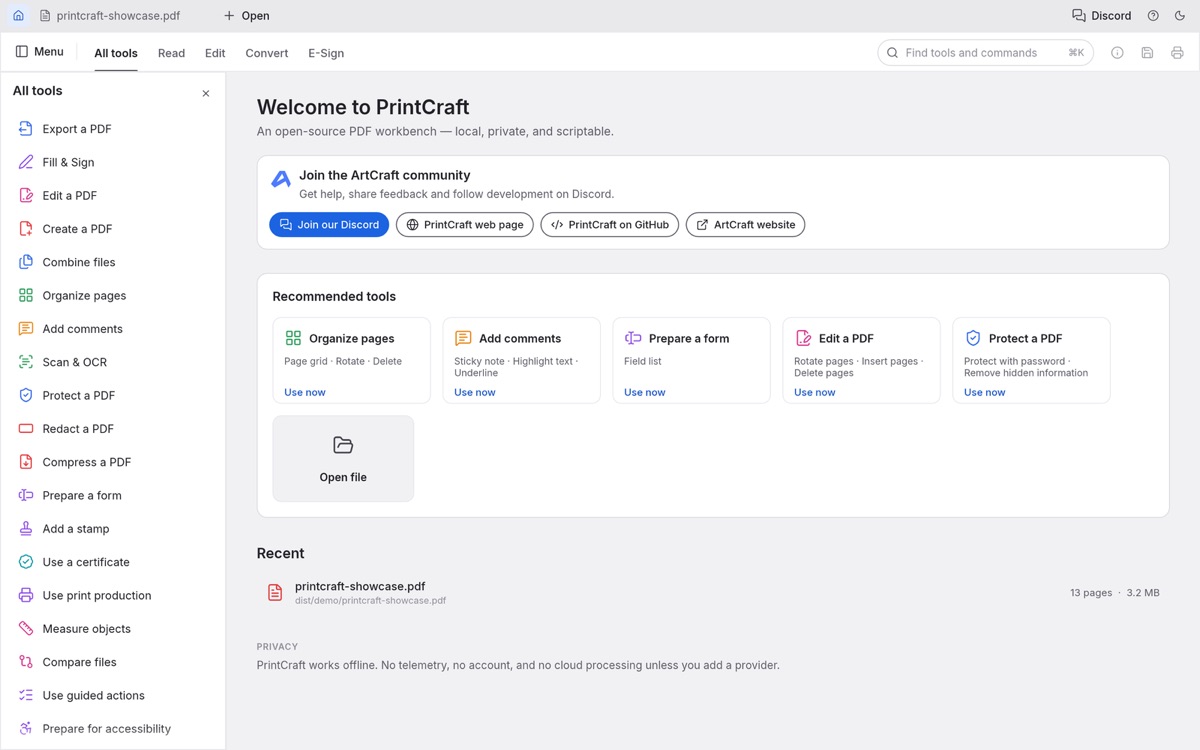
There are other GitHub projects called PDFCraft. This is the one from the reel, the one with over 20,000 stars. In the reel I said "PDFCraft". It's spelt PdfCraft, and until early October 2026 it was called PrintCraft, so you'll still see that name in a few places (including the screenshots on this page).
Why offline matters
When you drop a client contract into a free PDF website, you upload it to a stranger's server, and you've got no idea what happens to it after that. PdfCraft works on the file sitting on your computer. There's no account to make, and nothing goes to the cloud. In its makers' words: "Documents never leave your machine. There's no account, no telemetry and no cloud processing."
The one thing it does online: it checks for a newer version when it opens. You can switch that off in Menu → Edit → Preferences (untick Check for updates when PdfCraft starts).
| Stars on GitHub | 20,060 (the reel said almost 20,000, and it ticked past that today) |
|---|---|
| Cost | Free. Open-source licence: MIT or Apache-2.0, your choice. |
| Runs on | Mac (macOS 11 Big Sur or newer, Apple silicon and Intel), Windows (64-bit, ARM and 32-bit), Linux and FreeBSD |
| Latest version | 0.19.0, released 07/11/2026 (Perth time). New versions land every few days. |
| How new it is | The project started on 30/09/2026. Its makers call it alpha, which means early: it works, and it still has bugs. |
| Who signs the installers | Mac: Apple Developer ID "Learning Machines LLC", notarised by Apple. Windows: "Learning Machines Inc". The setup prompt checks this before installing. |
Before you trust it with client work
- Keep your originals. The setup prompt tells Claude never to touch your Inbox folder and to save every result as a new file.
- Check every PDF before a client sees it. Open it in a second app (Preview on a Mac, or Adobe's free Acrobat Reader) and make sure it looks right there too.
- Expect the odd bug. It's weeks old. If something breaks, the Get unstuck section has the fixes I found.
Where your files go when Claude helps
PdfCraft never uploads anything. Claude is different. Claude Code runs on your computer, but the thinking happens on Anthropic's servers, so anything Claude reads or looks at goes to Anthropic as part of your chat, the same as anything you type into Claude. Codex works the same way with OpenAI.
Merging, splitting and adding a password don't need Claude to read your pages, and the setup prompt tells it not to unless you say so. For a really private file, do the job yourself in the PdfCraft app. Every job below shows you what to click.
Install it with Claude
You don't strictly need Claude to install PdfCraft. You can download it from getartcraft.com/apps/pdfcraft like any app. Install it with Claude when you want two things: Claude checking the download is the genuine one before it goes on your computer, and Claude running PDF jobs for you afterwards. The prompt installs the app plus its command-line version, which is the part Claude drives.
Get Claude Code in the desktop app
Download the Claude app from claude.com/download, open it, sign in and click Code at the top of the sidebar. Claude in your browser can't reach the files on your computer, so it won't work for this.
Make a folder called PDF Studio
In Finder (File Explorer on Windows), open Documents, right-click an empty spot, choose New Folder and name it PDF Studio. Leave it empty. Claude fills it in.
Open a chat in that folder and choose Local
On the Code tab, look at the row of controls under the message box. Choose Local, then Open folder… and pick PDF Studio. Set the permission mode to Manual for now, so Claude asks before it runs anything and you see every step.
Paste the setup prompt
Copy the prompt below, paste it into that chat and send it. Read what Claude tells you, and say yes when it matches.
The one part that costs money
PdfCraft is free. Claude Code isn't on the free Claude plan. You need Pro or higher: US$20 a month, or US$17 a month if you pay for the year (US$200 upfront). Prices from claude.com/pricing on 09/11/2026. Only want PdfCraft? Download it yourself from the link above and pay nothing.
The setup prompt
It checks if you're on a Mac or Windows, downloads only from PdfCraft's official release page, checks each file against the published checksums (a fingerprint that proves the file wasn't tampered with) and checks who signed it. Then it installs the app, tests it and opens it.
What you'll see
- Claude tells you the version and the files, then waits for your yes. When it asks to run a command, approve it if it matches what Claude just told you.
- The downloads are about 215 MB on a Mac (the app is about 130 MB, the command-line version about 86 MB) and about 95 MB on Windows.
- On Windows, the PdfCraft installer window opens. Click through it yourself. It installs for your account only, so it doesn't ask for an administrator password.
- The first time PdfCraft opens, your Mac might ask if you're sure you want to open an app from the internet. Click Open.
You're done when: PdfCraft is open on your screen, and Done/Setup test has a combined test PDF in it.
On Linux? The same prompt works. Add "I'm on Linux" and Claude picks the AppImage or .deb from the same release page.
The same setup in Codex
Already use Codex? Open your PDF Studio folder as a local project in the Codex app and paste the same setup prompt, with one change: in step 10, swap CLAUDE.md for AGENTS.md. Codex reads AGENTS.md at the start of a session the way Claude reads CLAUDE.md.
Every other prompt on this page works in Codex as written. Where it says CLAUDE.md, Codex uses AGENTS.md.
The six jobs from the reel
Two ways to do each one: click it yourself in PdfCraft, or ask Claude in your PDF Studio chat. Either way, put the PDF in Inbox first. In the app, every tool is under All tools on the left, or press Command+K (Ctrl+K on Windows) and type what you want.
In each prompt, swap the [square brackets] for your own details.
1Merge PDFs into one
Click: All tools → Combine files → Add files to combine. Pick the files, put them in order, then save. Each file gets its own bookmark in the combined PDF, so you can jump between them.
Or ask Claude:
2Split a PDF
Click: press Command+K (Ctrl+K on Windows), type split and choose Split document…. Split every so many pages, before the pages you choose, at each top-level bookmark, or by file size (handy when an email won't take a big file). Only need a few pages? Extract pages copies them into a new PDF and leaves the original alone.
Or ask Claude:
3Fill in a form
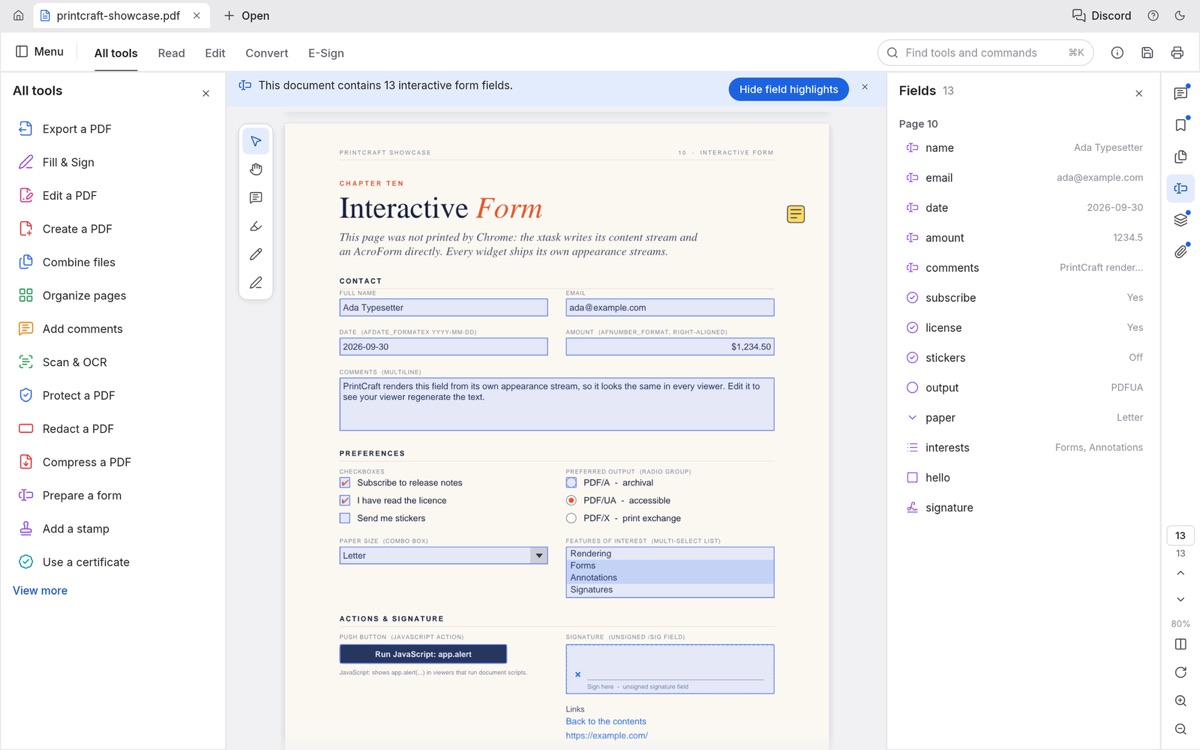
Click: open the PDF. If it has fillable boxes, a bar across the top says how many form fields it found. Click a box and type. No boxes (a flat PDF someone scanned or printed)? Use All tools → Fill & Sign → Add text and click where each answer goes. Checkmark and Date are in Fill & Sign too.
Or ask Claude:
This prompt has Claude read the form and your answers, so skip it for anything you wouldn't type into a chat.
4Sign it
Click: All tools → Fill & Sign → Signature. Type it, draw it, or use a photo of your signature on white paper, then click where it goes. PdfCraft keeps it for next time (Change signature redoes it). There's also Digitally sign, which uses a digital ID certificate. Most small businesses don't need that one.
Or ask Claude: put a photo of your signature in Tools first (sign white paper with a dark pen and take a photo).
5Put a password on it
Click: All tools → Protect a PDF → Protect with password. An open password is needed to open the file. A permissions password stops people printing, copying or changing it. It encrypts with AES-256 unless you choose otherwise. Remove security takes the password off again.
Test it before a client gets it
PdfCraft's own notes rate password protection as one of its newer features, and say Adobe Acrobat only opens its protected files properly since a recent fix. Save a protected copy, open it in Preview or Adobe's free Acrobat Reader with the password, and only then send it.
Or ask Claude: fine for things like a workbook you sell. For a client's private file, set the password yourself in the app, because any password Claude sets ends up in your chat history.
6Edit it
Click: All tools → Edit a PDF → Edit text & images, click the text and type. In the same group you can rotate, delete and insert pages. To reorder them, press Command+K and choose Page grid: every page shows as a thumbnail you can drag.
This is its weakest job right now
Editing existing text works on ordinary English paragraphs. The font can change, and some PDFs won't edit cleanly. Fixing a typo or a price: fine. Rewriting a page: have Claude rebuild the document from scratch instead (next section).
Or ask Claude:
Contracts, proposals, workbooks and signed forms
This is the bit from the reel where PdfCraft and Claude work together. Here's who does what, because PdfCraft can't do all of it on its own.
Claude does
- Writes the document from your notes
- Lays it out with your logo and colours
- Turns it into a PDF with your browser's own Save as PDF (free, and nothing gets uploaded)
- Runs PdfCraft to add the boxes and checks the result
PdfCraft does
- Adds fillable text boxes, tick boxes and date fields
- Finds the blank lines on a form and turns them into boxes (Detect form fields)
- Fills in, signs and locks finished forms so nobody can change the answers
- Collects the answers from a pile of returned forms into one spreadsheet
What neither does: email the contract to your client and track who signed when. That's what Adobe's paid plans and the e-signature apps charge for. Here, you email the PDF yourself. PdfCraft also can't turn a Word document into a PDF yet, which is why Claude builds the page itself.
How your client signs it: they open it in whatever PDF app they've got (Preview on a Mac, Adobe's free Acrobat Reader, or PdfCraft), type into the boxes, add their signature with that app's sign tool, save it and email it back.
First: save your business details once
Fill these in and the prompt updates as you type. Nothing you type here leaves this page. Then copy it into your PDF Studio chat. It saves your branding and the steps Claude follows for every document, so the prompts after it stay short.
1. A client contract they can sign
Claude isn't a lawyer. Get your contract wording checked once, then reuse it in every one of these.
2. A proposal with a sign-to-accept page
3. A fillable workbook
4. A client form they fill in and sign
5. Make an existing form fillable
For the forms you already print and scan, or a PDF you exported from Word.
6. When the signed forms come back
This one has Claude read your clients' answers. Skip it for anything you wouldn't paste into a chat, and flatten those yourself in the app.
What this replaces
Adobe's Acrobat plans in Australia, including GST, from adobe.com/au/acrobat/pricing.html on 09/11/2026:
| Plan | Yearly plan, paid monthly | Month to month |
|---|---|---|
| Acrobat Standard | A$23.99 a month (A$287.88 a year) | A$39.99 a month |
| Acrobat Pro | A$31.99 a month (A$383.88 a year) | A$47.99 a month |
| PdfCraft | Free | Free |
Acrobat Standard is Adobe's cheapest plan that lists editing text, combining files and password protection. Adobe's free Acrobat Reader already fills in and signs PDFs, so if that's all you do, you weren't paying Adobe for it anyway.
Acrobat still does more. It sends documents for signature and tracks who has signed, and its text editing is far more reliable right now. If your business runs on either of those, PdfCraft won't replace it yet. For merging, splitting, forms and passwords, it covers what most of us were paying for.
The Claude route isn't free either: Claude Code needs a paid Claude plan (see step 2). If you already pay for Claude or Codex, PdfCraft adds nothing to the bill.
Get unstuck
Open the problem that matches yours and paste the line into the same chat. Give Claude the actual error or filename if you have one.
The Code tab asks me to upgrade
Claude Code isn't on the free plan. Upgrade to Pro or higher at claude.com/pricing, restart the app and click Code again. Or skip Claude and download PdfCraft yourself from getartcraft.com/apps/pdfcraft.
The checksum or signature check fails
Don't install it. Paste this:
My Mac says "Apple could not verify… is free of malware" when I double-click a PDF
It's a known open bug (issue #3371). It shows up when PdfCraft is your default PDF app and the PDF came from your browser. It's about how macOS marks downloaded files, not a virus. Open the PDF from inside PdfCraft instead (Open, top left), or keep Preview as your default PDF app. The setup prompt tells Claude not to make PdfCraft your default for this reason.
My antivirus flags the Windows installer
One online scanner flagged the Windows installer in October (issue #747). The investigation posted in that thread puts it down to a false alarm caused by the .msi installer format. If it still worries you, use the portable version, which has no installer at all:
PdfCraft won't open, or the window is blank
Claude says it can't find pdfcraft-cli
The boxes land in the wrong place
My client can't open the password-protected PDF
Something else is wrong
Get the prebuilt skills
I have 50+ prebuilt skills, templates and guides inside my membership.
If you'd rather grab one that's already built than write the prompts yourself, they're in there. A skill is a saved set of instructions your AI can reuse for one job. I'm in there every day answering questions, and there are three live calls a month.
Use this free guide to set up PdfCraft and send your first contract, then choose how you want to keep working.
Get the prebuilt skills in the membership →Already a member? Open your membership classroom for the skills.