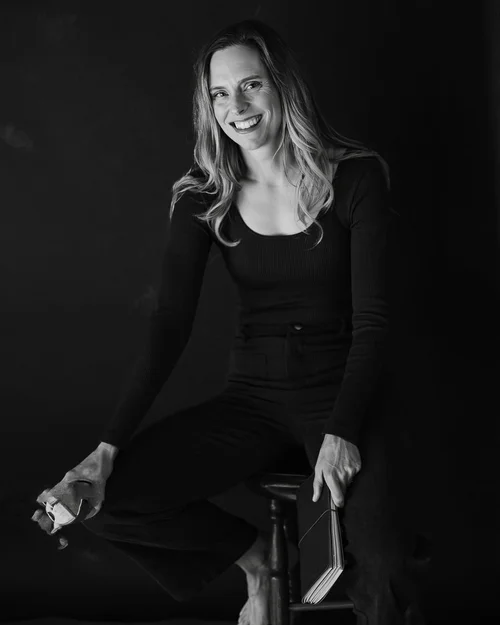
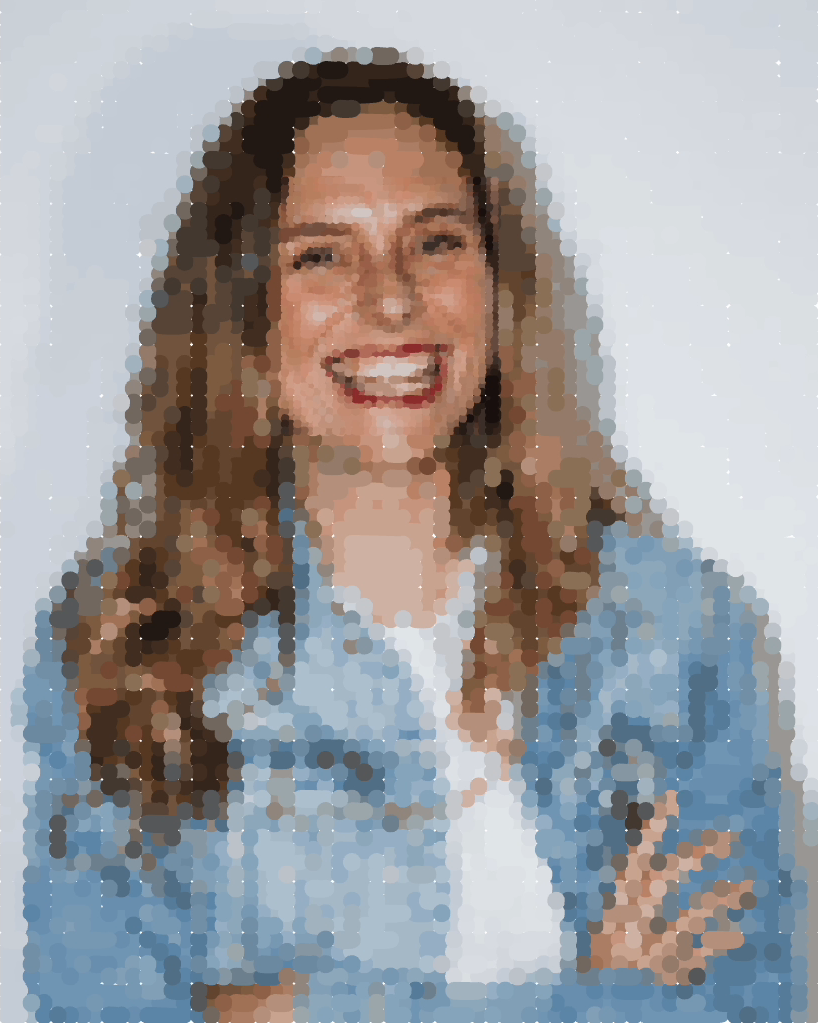
I asked Codex to draw me in Canva. It used the drawing tool and built the portrait from thousands of small colour patches. The first attempt was too cartoon-like, so we made the brushwork finer. That part mattered.
Start here
Attach a clear photo, open Canva, then paste this into Codex. If you have not connected computer use yet, follow the setup below first.
Use the photo I attached as the reference and draw a portrait of me in Canva.
First, check that you can see and operate my Canva tab with computer use. If you cannot, tell me what access is missing and stop before drawing.
Open a new, blank 1080 × 1350 px Canva design. Use Canva's actual Draw tool and real mouse clicks or short strokes. Do not import a finished image, generate an AI image, or replace the drawing with an SVG.
Aim for a detailed, pixel-like portrait built from small, overlapping colour patches sampled from my photo. Preserve the shape of my face, eye spacing, nose, smile, hair and the light and shadow. Avoid broad cartoon outlines. Keep the background simple.
Plan the image before drawing. Use a fine colour grid for the whole picture, then a finer grid and a smaller brush around my eyes, nose and mouth. A useful starting point is roughly 64 × 80 colour samples overall, with about double that sampling density for the face. Adjust this to the visible canvas and the brush size; those are starting points, not a quality guarantee.
Draw a small face section first and compare it with my photo at normal viewing size. If it looks too coarse, reduce the brush size and add intermediate skin tones before continuing. Show me the face for a quick check, then complete the hair, clothes and background.
Keep the canvas position and zoom stable while you draw. Check the visible result regularly, and save progress so you can resume without drawing the same area twice.
If real screen recording is available, record the actual drawing from the start. Otherwise tell me before starting so I can record it myself. Never recreate a recording and present it as the original process.
Save the Canva design. When the portrait is complete, give me the editable design link and a PNG export. If you recorded the process, also give me a sped-up video with a clear hold on the finished portrait. Do not publish anything.
The finished portrait, drawn in Canva with 4,736 strokes. Smaller colour patches around the face added detail to the eyes and smile.
2. Get the setup ready
1
Choose one clear photo
Use a photo of yourself with even lighting, a visible face and a simple background. Crop it so your face takes up a decent part of the image. Tiny faces give the drawing less detail to work with.
2
Open Canva in a browser
Sign in and create a blank 1080 × 1350 px design. Leave the editor open. You can use the photo as a reference without putting it on the finished canvas.
3
Check Codex can control the drawing tool
My experiment used the Codex desktop app with computer use enabled. Access varies by account and setup. Use the check below before you commit to the full drawing. OpenAI's Codex page has the current access options.
4
Keep the drawing session visible
Follow any screen-recording or accessibility permission prompts. Keep your computer awake with the screen visible, and avoid moving the Canva window or changing its zoom while Codex is drawing. If you want the process video, confirm recording is running before the first stroke.
I want you to draw from my photo in Canva using the actual Draw tool. Before we start, check whether computer or browser control is available in this Codex session. Confirm that you can see my Canva editor and use its drawing controls. If a permission or connection is missing, tell me exactly what I need to enable. Do not assume a Canva connector alone gives you mouse control. Do not start drawing yet.
Give it time
This is a slow drawing experiment with thousands of strokes. Allow a substantial block of time and keep an eye on the progress. Your result will depend on the photo, the available controls and how much detail you ask for.
3. Give the face more detail
The face is where you notice the difference first. If the eyes or smile look off, use this after the first face check. Smaller marks and more shades help; they still need to be in the right place.
Keep the current portrait and its composition. Add detail to the face using the reference photo.
Compare the eye spacing and direction, eyebrows, nose shape, smile, teeth, jawline and hairline with the photo. Use a smaller Canva Draw brush and finer, overlapping colour patches only where needed. Add the missing light, midtone and shadow colours instead of outlining everything in black.
Preserve my actual proportions and expression. Do not enlarge my eyes, smooth away the features that make me recognisable, or turn this into a cartoon.
Work on the eyes, nose and mouth first. Show me a close-up and a normal-size view so I can judge the likeness. Keep the original version saved, continue the real recording if one is running, and only call it complete after checking the visible drawing.
If it looks too cartoon-like
Look for thick outlines, large flat blocks of skin colour or exaggerated eyes. Ask for smaller patches, more in-between tones and closer attention to the photo's proportions.
If the likeness is off
Check eye spacing, the angle of the smile and the face shape. Correct those before adding more tiny marks. Extra detail cannot rescue the wrong proportions.
4. Save the result and the process
1
Keep the editable design
Give it a name you can find again. Export a PNG from Canva and check that the whole portrait is visible.
2
Pick the useful process moments
A blank canvas, the face taking shape and the finished portrait tell the story. Save actual frames from the recording for a carousel, or speed up the recording for a video.
3
Check it at phone size
Can you recognise the person? Can you see what changed between the process slides? Keep a few seconds on the finished image so people can take it in.
The bit I would repeat
Check the face early. It is much easier to change the brush size after one small section than after an entire portrait.